> For the complete documentation index, see [llms.txt](https://docs.flatredball.com/gum/llms.txt). Markdown versions of documentation pages are available by appending `.md` to page URLs; this page is available as [Markdown](https://docs.flatredball.com/gum/code/animationruntime.md).
# Animation
## Introduction
`AnimationRuntime` is a class containing a list of keyframes (of type KeyframeRuntimeInstance). `AnimationRuntime` instances can be used to modify variables on a `GraphicalUiElement` over time .
AnimationRuntime instances can be created from animations defined in the Gum tool or by hand in code. For information on how to create an animation in the Gum Tool, see the [Animation Tutorials](/gum/gum-tool/tutorials-and-examples/animation-tutorials.md) section.
{% hint style="warning" %}
As of April 2025 animation support at runtime is considered a preview feature and the syntax for working with animations is likely to change in response to community feedback.
{% endhint %}
## Code Example - Loading Animations from Gum Project
Animations defined in the Gum tool can be loaded at runtime. To load and play an animation, the following calls are needed:
1. Call `GumService.LoadAnimations` . This loads all animation files for all screens and components in the current Gum project.
2. Obtain an `AnimationRuntime` instance from your `GraphicalUiElement` . This could be a screen or component.
3. Call `PlayAnimation` to begin the animation.
{% hint style="info" %}
The `PlayAnimation(string)` and `PlayAnimation(int)` overloads are extension methods in the `Gum.Wireframe` namespace. If a call such as `PlayAnimation("SlideOnAndOff")` will not compile (for example "no overload for method `PlayAnimation` takes 1 argument"), add `using Gum.Wireframe;` at the top of your file.
{% endhint %}
{% hint style="warning" %}
Call `LoadAnimations` before creating any screen or component that uses animations. Gum assigns animations to each element as it is created, so an element created earlier has no animations. This includes the generated animation fields (such as `ShowAnim`) and `CustomInitialize`, which both run during creation. Calling `PlayAnimation` with an animation that was not found throws an `ArgumentNullException` that mentions this.
{% endhint %}
Animations can be played on an entire screen, entire component, or an individual instance within a screen or component.
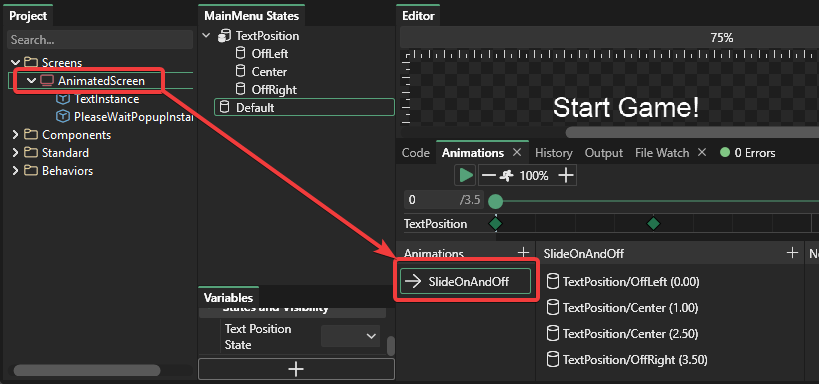
For this example, the project has a screen called AnimatedScreen which contains an animation named SlideOnAndOff.
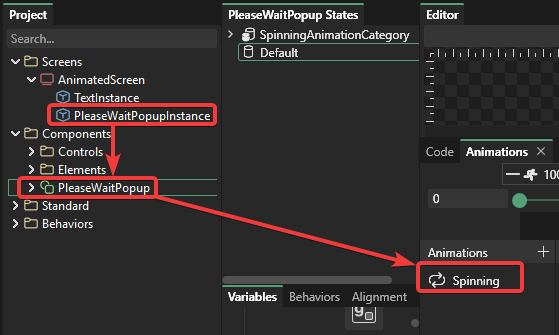
AnimatedScreen also contains an instance of a component named PleaseWaitPopup which has its own animation called Spinning. Note that the Spinning animation is marked as repeating, so once it starts it will play until it is stopped in code.
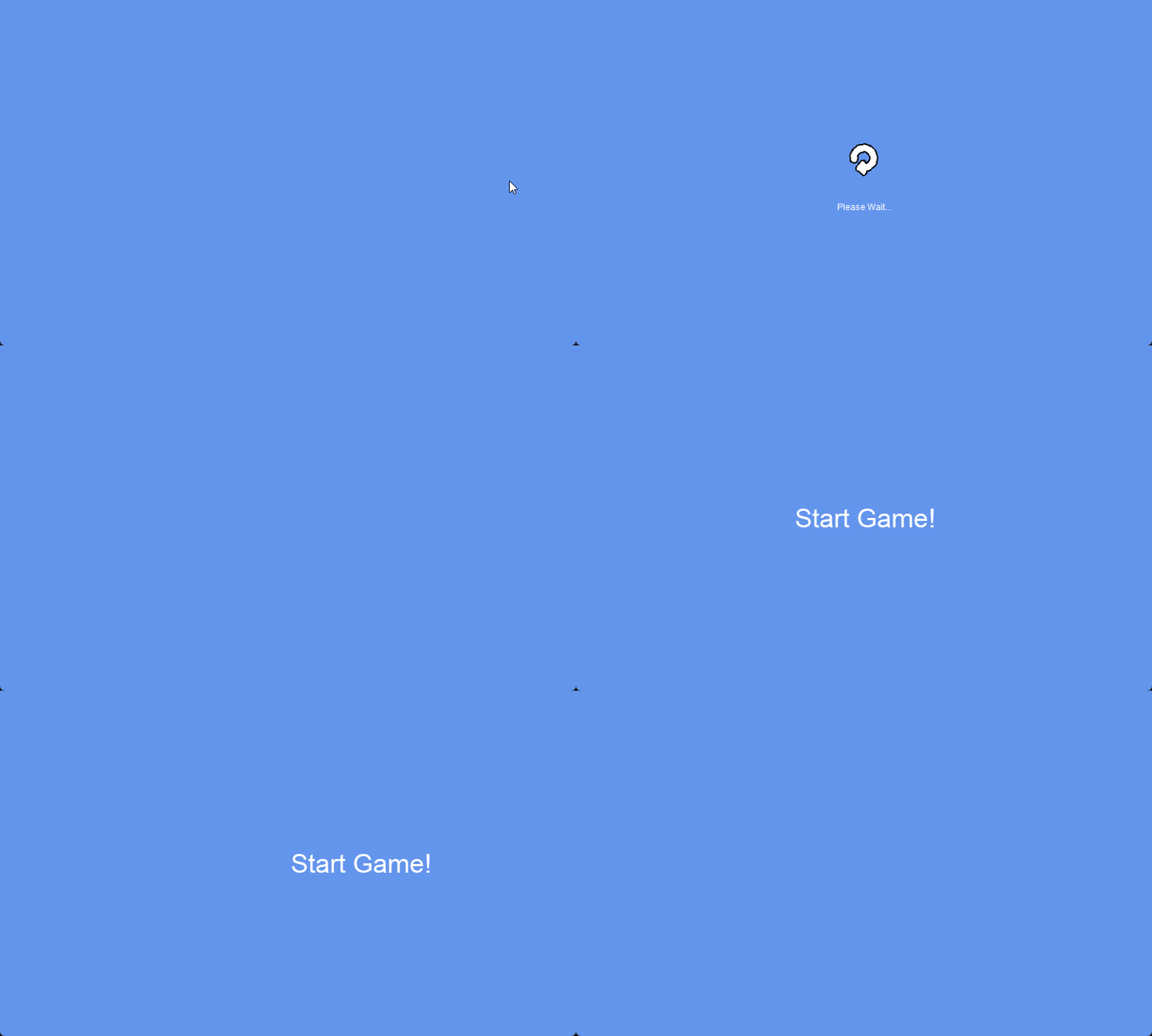
The following code shows how to load all animations, create the AnimatedScreen, and play animations according to keyboard commands.
{% tabs %}
{% tab title="Using Generated Code" %}
using Gum.Wireframe; // for PlayAnimation extension method

public class Game1 : Game
{
    private GraphicsDeviceManager _graphics;
    GumService GumUI => GumService.Default;
    public Game1()
    {
        _graphics = new GraphicsDeviceManager(this);
        Content.RootDirectory = "Content";
    }

    AnimatedScreen _animatedScreen;

    protected override void Initialize()
    {
        GumUI.Initialize(this, "GumProject/GumProject.gumj");
        GumUI.LoadAnimations();

        _animatedScreen = new AnimatedScreen();
        _animatedScreen.AddToRoot();

        base.Initialize();
    }

    protected override void Update(GameTime gameTime)
    {
        GumUI.Update(gameTime);

        var keyboard = GumUI.Keyboard;
        if(keyboard.KeyPushed(Gum.Forms.Input.Keys.Space))
        {
            _animatedScreen.Visual.PlayAnimation("SlideOnAndOff");
        }
        if(keyboard.KeyPushed(Gum.Forms.Input.Keys.Escape))
        {
            var popup = _animatedScreen
                .PleaseWaitPopupInstance.Visual;

            if(popup.Visible)
            {
                popup.StopAnimation();
                popup.Visible = false;
            }
            else
            {
                popup.Visible = true;
                popup.PlayAnimation("Spinning");
            }
        }

        base.Update(gameTime);
    }

    protected override void Draw(GameTime gameTime)
    {
        GraphicsDevice.Clear(Color.CornflowerBlue);
        GumUI.Draw();
        base.Draw(gameTime);
    }
}
{% endtab %}
{% tab title="No Generated Code" %}
using Gum.Wireframe; // for PlayAnimation extension method
using Gum; // for GumService and the ToGraphicalUiElement() extension method

public class Game1 : Game
{
    private GraphicsDeviceManager _graphics;
    GumService GumUI => GumService.Default;
    public Game1()
    {
        _graphics = new GraphicsDeviceManager(this);
        Content.RootDirectory = "Content";
    }

    GraphicalUiElement _animatedScreen;

    protected override void Initialize()
    {
        GumUI.Initialize(this, "GumProject/GumProject.gumj");
        GumUI.LoadAnimations();

        _animatedScreen = Gum.Managers.ObjectFinder.Self
            .GetScreen("AnimatedScreen")
            .ToGraphicalUiElement();
        _animatedScreen.AddToRoot();

        base.Initialize();
    }

    protected override void Update(GameTime gameTime)
    {
        GumUI.Update(gameTime);

        var keyboard = GumUI.Keyboard;
        if(keyboard.KeyPushed(Gum.Forms.Input.Keys.Space))
        {
            _animatedScreen.PlayAnimation("SlideOnAndOff");
        }
        if(keyboard.KeyPushed(Gum.Forms.Input.Keys.Escape))
        {
            var popup = _animatedScreen
                .GetGraphicalUiElementByName("PleaseWaitPopupInstance");

            if(popup.Visible)
            {
                popup.StopAnimation();
                popup.Visible = false;
            }
            else
            {
                popup.Visible = true;
                popup.PlayAnimation("Spinning");
            }
        }

        base.Update(gameTime);
    }

    protected override void Draw(GameTime gameTime)
    {
        GraphicsDevice.Clear(Color.CornflowerBlue);
        GumUI.Draw();
        base.Draw(gameTime);
    }
}
{% endtab %}
{% endtabs %}
## AnimationController
Every `GraphicalUiElement` owns an `AnimationController` (accessed via `Visual.AnimationController`) which tracks playback state and raises `OnStarted`, `OnCompleted`, `OnStopped`, `OnPaused`, and `OnResumed` events. `PlayAnimation` and `StopAnimation` are convenience wrappers around this controller.
### Waiting for an Animation to Finish with PlayAnimationAsync
Use `PlayAnimationAsync` to await an animation's completion instead of subscribing to `OnCompleted`/`OnStopped` and manually unsubscribing. New to `async`/`await`? See [async Programming](/gum/code/async-programming.md).
```csharp
// Update
try
{
await buttonVisual.PlayAnimationAsync(growAnimation);
// Only runs if the animation actually finished.
DoNextThing();
}
catch (TaskCanceledException)
{
// The animation was interrupted before it finished.
}
```
{% hint style="warning" %}
Calling `PlayAnimation` or `StopAnimation`/`AnimationController.Stop()` again while a `PlayAnimationAsync` call is still in flight cancels the awaited task (`TaskCanceledException`) instead of letting it complete. "Finished" and "interrupted" are different outcomes, so code after the `await` should not assume the animation actually played to the end unless the cancellation is handled, either with a `try`/`catch` as shown above or by checking `task.IsCanceled`.
{% endhint %}
An optional `System.Threading.CancellationToken` can also be passed to stop the animation and cancel the task from outside code, for example an unfocus or a scene change:
```csharp
// Class scope
CancellationTokenSource _animationCancellation = new CancellationTokenSource();
// Update
try
{
await buttonVisual.PlayAnimationAsync(growAnimation, _animationCancellation.Token);
}
catch (TaskCanceledException)
{
}
```
## Playing Animations on Hover or Highlight
Forms controls such as `Button` change their visual state (for example **Enabled**, **Highlighted**, **Pushed**, and **Disabled**) automatically as the user interacts with them. These state changes are applied instantly — they are not keyframe animations, and they do not call `PlayAnimation`.
Keyframe animations never play on their own. To run an animation when a control is highlighted, subscribe to the visual's `RollOn` event (raised when the cursor first moves over the control) and `RollOff` event (raised when the cursor leaves), then call `PlayAnimation`:
```csharp
// Initialize
button.Visual.RollOn += (_, _) =>
{
button.Visual.PlayAnimation("Highlight");
};
button.Visual.RollOff += (_, _) =>
{
button.Visual.PlayAnimation("Unhighlight");
};
```
The animations named above must exist on the control — either authored in the Gum tool and loaded with `LoadAnimations`, or created in code as shown in the next section. The control still applies its built-in **Highlighted** state on `RollOn`, so use animations for additional effects on top of that state rather than as a replacement for it.
## Code Example - Animations in Code-Only Projects
Animations can be defined and executed in a code-only environment. The steps for creating an animation in a code only project are:
1. Creating an object which will be animated (such as a Button).
2. Creating the states for the animation. For example, a Button may have a larger size when highlighted, and a smaller size when not highlighted.
3. Create keyframes which define the time when each state should display and how to interpolate (tween) between each of the keyframes.
4. Define the animation using the states (keyframes) defined earlier.
5. Play the animation in response to an event, such as a Button highlight.
```csharp
protected override void Initialize()
{
GumUI.Initialize(this);
var button = new Button();
button.AddToRoot();
button.Anchor(Anchor.Center);
var buttonVisual = button.Visual;
buttonVisual.Animations = new List();
StateSaveCategory category = new StateSaveCategory();
category.Name = "Size";
button.Visual.AddCategory(category);
// we will grow/shrink the contained background in response to hovering:
var largeState = new StateSave();
category.States.Add(largeState);
largeState.Name = "Large";
// can't use Apply since we need values to be interpolated:
// buttonVisual background is already
// using WidthUnits and HeightUnits
// of RelativeToParent, so we can just set the Width/Height:
largeState.SetValue("Background.Width", 20f);
largeState.SetValue("Background.Height", 20f);
var regularState = new StateSave();
category.States.Add(regularState);
regularState.Name = "Regular";
regularState.SetValue("Background.Width", 0f);
regularState.SetValue("Background.Height", 0f);
var growAnimation = new AnimationRuntime();
buttonVisual.Animations.Add(growAnimation);
growAnimation.Name = "Grow";
var firstGrowKeyframe = new KeyframeRuntime();
growAnimation.Keyframes.Add(firstGrowKeyframe);
firstGrowKeyframe.StateName = category.Name + "/" + regularState.Name;
firstGrowKeyframe.Time = 0;
firstGrowKeyframe.InterpolationType = FlatRedBall.Glue.StateInterpolation.InterpolationType.Elastic;
firstGrowKeyframe.Easing = FlatRedBall.Glue.StateInterpolation.Easing.Out;
var secondGrowKeyframe = new KeyframeRuntime();
growAnimation.Keyframes.Add(secondGrowKeyframe);
secondGrowKeyframe.StateName = category.Name + "/" + largeState.Name;
secondGrowKeyframe.Time = 1;
var shrinkAnimation = new AnimationRuntime();
buttonVisual.Animations.Add(shrinkAnimation);
shrinkAnimation.Name = "Shrink";
var firstShrinkKeyframe = new KeyframeRuntime();
shrinkAnimation.Keyframes.Add(firstShrinkKeyframe);
firstShrinkKeyframe.StateName = category.Name + "/" + largeState.Name;
firstShrinkKeyframe.Time = 0;
firstShrinkKeyframe.InterpolationType = FlatRedBall.Glue.StateInterpolation.InterpolationType.Elastic;
firstShrinkKeyframe.Easing = FlatRedBall.Glue.StateInterpolation.Easing.Out;
var secondShrinkKeyframe = new KeyframeRuntime();
shrinkAnimation.Keyframes.Add(secondShrinkKeyframe);
secondShrinkKeyframe.StateName = category.Name + "/" + regularState.Name;
secondShrinkKeyframe.Time = 1;
buttonVisual.RollOn += (_,_) =>
{
buttonVisual.PlayAnimation(growAnimation);
};
buttonVisual.RollOff += (_,_) =>
{
buttonVisual.PlayAnimation(shrinkAnimation);
};
base.Initialize();
}
```
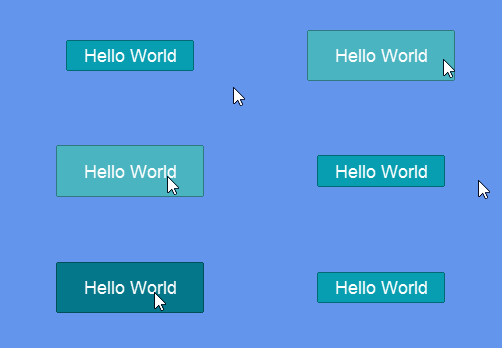
Button reacting to hover
## Named Events
An animation can carry **named events** on its timeline — markers with a name and a time. When playback crosses a marker's time, Gum raises an event so your game can react: play a sound effect, enable a hitbox, spawn a particle, and so on. Named events are authored in the Gum tool's animation editor (see the [Animation Tutorials](/gum/gum-tool/tutorials-and-examples/animation-tutorials.md)) or added in code.
Subscribe through the visual's `AnimationController`. The `NamedEventOccurred` event passes a `NamedAnimationEventArgs` whose `Name` you typically switch on:
```csharp
// Initialize
_animatedScreen.Visual.AnimationController.NamedEventOccurred += args =>
{
switch (args.Name)
{
case "Footstep":
// play a footstep sound
break;
case "EnableHitbox":
// turn on a hitbox
break;
}
};
```
The same `AnimationController` also exposes playback events such as `OnStarted`, `OnCompleted`, `OnStopped`, `OnPaused`, and `OnResumed`.
For looping animations, `NamedEventOccurred` fires once each loop. An event fires when playback passes its time, so it does not fire if the animation is stopped or restarted before reaching it.
To add a named event to an animation created in code, add a `KeyframeRuntime` with its `EventName` and `Time` set (leave `StateName` unset — an event keyframe carries no state):
```csharp
// Initialize
var footstepEvent = new KeyframeRuntime();
growAnimation.Keyframes.Add(footstepEvent);
footstepEvent.EventName = "Footstep";
footstepEvent.Time = 0.5f;
```
## Playing Multiple Animations on the Same Instance
{% hint style="warning" %}
The following code requires December 2025 or newer of the Gum runtimes.
{% endhint %}
The `PlayAnimation` method performs the following logic:
1. Internally stores the animation that is played
2. Internally resets the time on the animation back to 0
Each instance can store a separate animation and time, allowing a single animation to be played on multiple instances.
Since each instance only stores one value for the current animation and time, an instance cannot play multiple animations at one time.
{% hint style="info" %}
Future versions of Gum may change this behavior, allowing `PlayAnimation` to stack multiple animations.
{% endhint %}
To play multiple animations, we can keep track of each animation time and apply it manually in our update function.
The following code assumes that `Animation1` and `Animation2` are valid animations. The following code also assumes that `MyInstance` is a valid visual instance.
```csharp
// Class scope
double animation1Time = 0;
double animation2Time = 0;
protected override void Update(GameTime gameTime)
{
GumUI.Update(gameTime);
var keyboard = GumUI.Keyboard;
animation1Time += gameTime.ElapsedGameTime.TotalSeconds;
animation2Time += gameTime.ElapsedGameTime.TotalSeconds;
if(keyboard.KeyPushed(Gum.Forms.Input.Keys.Space))
{
// Restart both animations when space is pressed
animation1Time = 0;
animation2Time = 0;
}
var animation1State = Animation1.GetStateToSet(animation1Time, MyInstance);
MyInstance.ApplyState(animation1State);
var animation2State = Animation2.GetStateToSet(animation2Time, MyInstance);
MyInstance.ApplyState(animation2State);
base.Update(gameTime);
}
```
---
# Agent Instructions
This documentation is published with GitBook. GitBook is the documentation platform designed so that both humans and AI agents can read, navigate, and reason over technical content effectively. Learn more at gitbook.com.
## Querying This Documentation
If you need additional information that is not directly available in this page, you can query the documentation by asking a question.
Perform an HTTP GET request on the following URL with the `ask` and `goal` query parameters:
```
GET https://docs.flatredball.com/gum/code/animationruntime.md?ask=&goal=
```
`ask` is the immediate question: it should be specific, self-contained, and written in natural language.
`goal` is what the user is ultimately trying to achieve, the reason they need the answer. Sharing it helps GitBook give you a better, more relevant answer. A goal is most helpful when it describes the outcome the user wants rather than restating the question. For example, with `ask=how do I create an API token`, a goal like `automate deployments from our CI pipeline` lets GitBook tailor the answer to that use case.
The response will contain a direct answer to the question and relevant excerpts and sources from the documentation.
Use this mechanism when the answer is not explicitly present in the current page, you need clarification or additional context, or you want to retrieve related documentation sections.