> For the complete documentation index, see [llms.txt](https://docs.flatredball.com/gum/llms.txt). Markdown versions of documentation pages are available by appending `.md` to page URLs; this page is available as [Markdown](https://docs.flatredball.com/gum/code/controls/scrollbar.md).
# ScrollBar
## Introduction
ScrollBar is a Forms control that lets the user select a numeric value by interacting with a draggable thumb, up/down buttons, and a track. It is most commonly used internally by [ScrollViewer](/gum/code/controls/scrollviewer.md), which creates and manages a ScrollBar automatically. Use ScrollBar directly when you need a standalone scrollbar that is not tied to a ScrollViewer — for example, to control a custom camera offset or to expose a scrollable range in a data-driven panel.
If you want a scrollable container that manages content layout for you, use [ScrollViewer](/gum/code/controls/scrollviewer.md) instead.
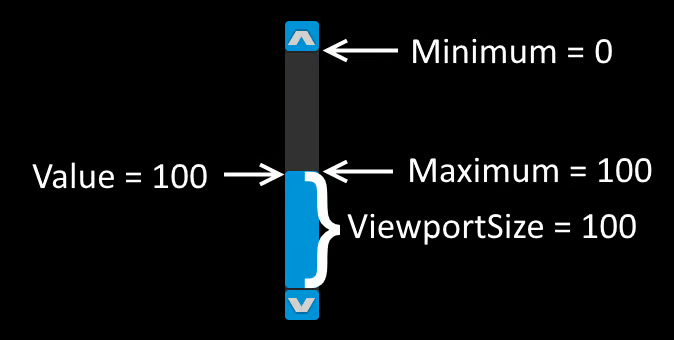
ScrollBar control
## Key Properties
* **`Value`** — The current numeric value. Always clamped between `Minimum` and `Maximum`. Set this in code to scroll the bar programmatically.
* **`Minimum`** — The lower bound of the range (inclusive). Defaults to `0`.
* **`Maximum`** — The upper bound of the range (inclusive). Defaults to `100`.
* **`SmallChange`** — The amount `Value` changes when the user clicks the up or down arrow buttons, or scrolls the mouse wheel over the scrollbar. A value set in code, authored on the Visual, or applied from a behavior stays set when the Visual is swapped. See [Properties Set by Forms Controls](/gum/code/styling/properties-set-by-forms-controls.md#scroll-step-sizes-survive-a-visual-swap).
* **`LargeChange`** — The amount `Value` changes when the user clicks on the track (the area between the thumb and the arrow buttons). Until you assign it, the ScrollBar derives it from `ViewportSize`, so a track click moves by one viewport. Once you assign a value, that value is used and stays set when the Visual is swapped.
## Events
* **`ValueChanged`** — Raised whenever `Value` changes, regardless of whether the change came from the UI or from code.
* **`ValueChangeCompleted`** — Raised when a discrete value change finishes (e.g. after releasing the thumb or clicking an arrow button). Use this to avoid reacting every frame during a drag.
## Code Example: Creating a Standalone ScrollBar
The following code creates a vertical ScrollBar, configures its range and change amounts, and subscribes to `ValueChanged` to react whenever the value is updated.
```csharp
// Initialize
var label = new Label();
label.AddToRoot();
label.X = 50;
label.Y = 20;
var scrollBar = new ScrollBar();
scrollBar.AddToRoot();
scrollBar.X = 50;
scrollBar.Y = 50;
scrollBar.Width = 24;
scrollBar.Height = 200;
scrollBar.Minimum = 0;
scrollBar.Maximum = 100;
scrollBar.SmallChange = 5;
scrollBar.LargeChange = 20;
scrollBar.Value = 0;
scrollBar.ValueChanged += (_, _) =>
label.Text = $"ScrollBar value: {scrollBar.Value}";
```
[Try on XnaFiddle.NET](https://xnafiddle.net/#snippet=H4sIAAAAAAAAA2WQQQvCMAyF_0ooHhRE5tTLZAcVUUEvKupAkOrCVug2mK2K4n-37bS6eev78vLS5EFm54lMiCdyiU3CUiYY5eyOxCMXmgOnR-TgQ4pXmOt3vdHfp4a2BmG4zpZZJn7YTnl7jpWBkq6WOut8yjPOh-pV5K0-2vTbaiX3y232FwX_aMtCEeux3RKeIotiYb5T9i_UzolMVKXC6e3N25WOVUI5H8U0jVCPL9XmNI_Q1txy44ZyiX-DDC1aQthLx3GHPtQPTTg0wNe6M_6cc403vULNuFx7P7joCA8eldBn4euT5wuoARPg5wEAAA)
## ScrollBar and ScrollViewer
In most cases you do not need to create a ScrollBar directly. [ScrollViewer](/gum/code/controls/scrollviewer.md) instantiates and manages one internally, and exposes `VerticalScrollBarValue` to read or set the scroll position in code. Use a standalone ScrollBar only when you need fine-grained control over a scrollable range that is not tied to a ScrollViewer's content panel.
## Custom Visuals
ScrollBar assigns the thumb's size and position along the scroll direction directly, so a custom Visual's states must set the thumb's size across the scroll direction. See [Properties Set by Forms Controls](/gum/code/styling/properties-set-by-forms-controls.md) for the full list.
---
# Agent Instructions
This documentation is published with GitBook. GitBook is the documentation platform designed so that both humans and AI agents can read, navigate, and reason over technical content effectively. Learn more at gitbook.com.
## Querying This Documentation
If you need additional information that is not directly available in this page, you can query the documentation by asking a question.
Perform an HTTP GET request on the following URL with the `ask` and `goal` query parameters:
```
GET https://docs.flatredball.com/gum/code/controls/scrollbar.md?ask=&goal=
```
`ask` is the immediate question: it should be specific, self-contained, and written in natural language.
`goal` is what the user is ultimately trying to achieve, the reason they need the answer. Sharing it helps GitBook give you a better, more relevant answer. A goal is most helpful when it describes the outcome the user wants rather than restating the question. For example, with `ask=how do I create an API token`, a goal like `automate deployments from our CI pipeline` lets GitBook tailor the answer to that use case.
The response will contain a direct answer to the question and relevant excerpts and sources from the documentation.
Use this mechanism when the answer is not explicitly present in the current page, you need clarification or additional context, or you want to retrieve related documentation sections.