> For the complete documentation index, see [llms.txt](https://docs.flatredball.com/gum/llms.txt). Markdown versions of documentation pages are available by appending `.md` to page URLs; this page is available as [Markdown](https://docs.flatredball.com/gum/code/getting-started/setup/adding-initializing-gum/pygame.md).
# Pygame
## Introduction
This page assumes you have an existing Pygame project. This can be a new project or an existing project.
## Getting started with gumui in Python
There are really only 3 important things after you import. Create an Instance of `GumUI`, call Update, and call `Draw()`
1. First you need to import the `GumUI` and `PyGame`
```python
from gumui import GumUI, GraphicalUiElement, InvisibleRenderable
import pygame
from pygame.locals import *
```
2. Next you need to initialize and configure Pygame, might as well do it now
```python
pygame.init()
BLACK = (0, 0, 0)
SCREEN_WIDTH = 640
SCREEN_HEIGHT = 480
screen = pygame.display.set_mode((SCREEN_WIDTH, SCREEN_HEIGHT))
```
3. Setup timing to force to 60 FPS (Frames Per Second)
```python
fps_clock = pygame.time.Clock()
fps = 60.0
dt = fps_clock.tick(fps)
```
4. Once Pygame is setup, you need to create the GumUI and initialize it
```python
# Initialize GumUI
myUi = GumUI()
myUi.initialize(screen) # `screen` is a Surface you wish GUM to draw to https://www.pygame.org/docs/ref/surface.html
```
5. Lets add a single item to the UI for now it will be a simple 32x32 square
```python
child = GraphicalUiElement(InvisibleRenderable())
myUi.RootElement.Children.Add(child)
child.XUnits = Converters.GeneralUnitType.PixelsFromSmall
child.Width = 32
child.YUnits = Converters.GeneralUnitType.PixelsFromSmall
child.Height = 32
```
6. Now that you've defined the UI (1 square inside the root element) you can create the standard pygame loop
```python
while True:
for event in pygame.event.get():
if event.type == QUIT:
pygame.quit()
sys.exit()
```
> ***NOTE:*** This will run forever, or until you hit ESC or press the X
7. Update and then Draw the UI elements
```python
myUi.update()
screen.fill(BLACK) # Fill the screen with black.
myUi.draw()
pygame.display.flip()
dt = fps_clock.tick(fps)
```
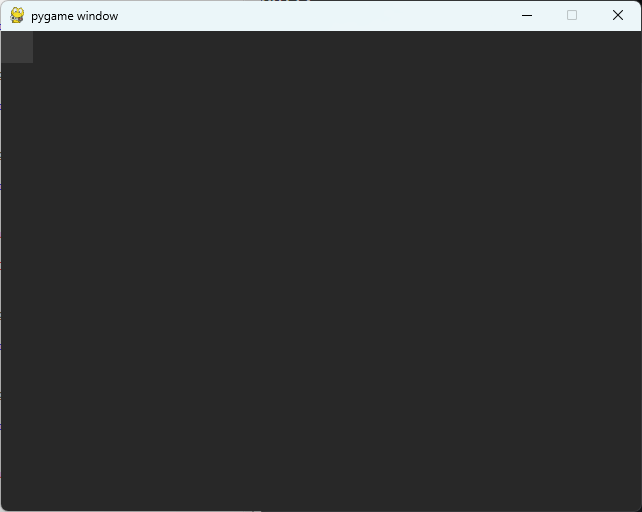
The above image shows the entire screen being drawn as the root element, and then the single 32x32 rectangle being drawn at the default (0, 0) position.
## Adding more UI elements
Currently this is a work in progress, as such, the only thing that is drawn are rectangles.
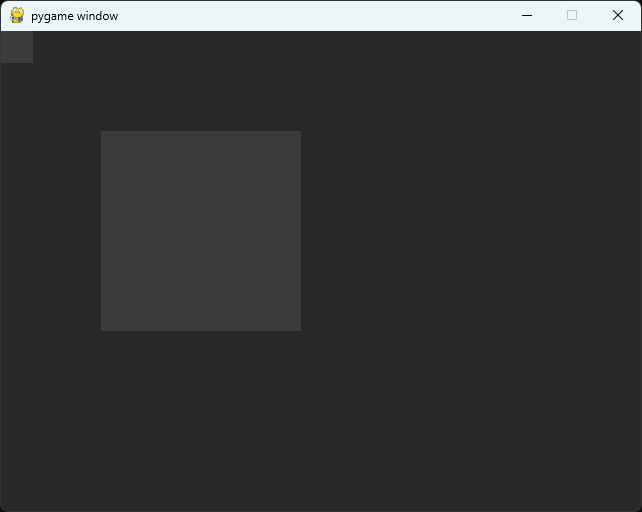
To add another UI element "square" you create an instance of [GraphicalUiElement](/gum/code/gum-code-reference/graphicaluielement.md), set it's properties, and add it to a parent.
{% hint style="info" %}
This code needs to be added before the main game while loop.
{% endhint %}
```python
child = GraphicalUiElement(InvisibleRenderable())
myUi.RootElement.Children.Add(child)
child.XUnits = Converters.GeneralUnitType.PixelsFromSmall
child.X = 100
child.Y = 100
child.Width = 200
child.YUnits = Converters.GeneralUnitType.PixelsFromSmall
child.Height = 200
```
## Adding grandchildren and great grandchildren
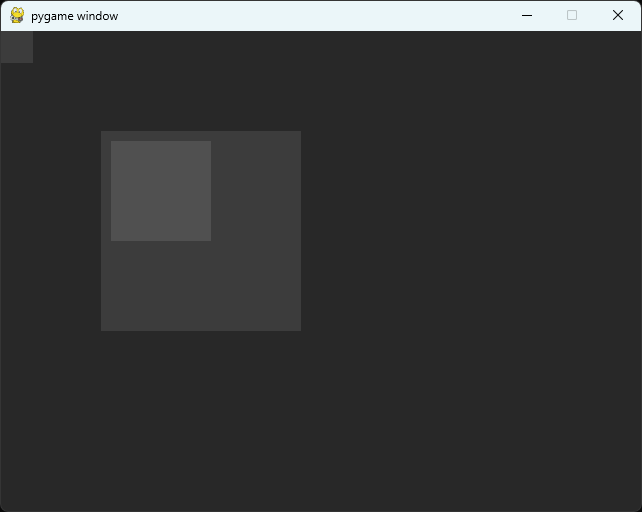
Here another child (100x100) is added to the larger (200x200) child from above.
```python
grandChild = GraphicalUiElement(InvisibleRenderable())
child.Children.Add(grandChild)
grandChild.XUnits = Converters.GeneralUnitType.PixelsFromSmall
grandChild.X = 10
grandChild.Y = 10
grandChild.Width = 100
grandChild.YUnits = Converters.GeneralUnitType.PixelsFromSmall
grandChild.Height = 100
```
Notice how the (100x100) rectangle is drawn at (10, 10), but that position is relative to the parent so it's actually drawn at (110, 110)
To see the full list of properties available for a [GraphicalUiElement ](/gum/code/gum-code-reference/graphicaluielement.md)see this documentation page
---
# Agent Instructions
This documentation is published with GitBook. GitBook is the documentation platform designed so that both humans and AI agents can read, navigate, and reason over technical content effectively. Learn more at gitbook.com.
## Querying This Documentation
If you need additional information that is not directly available in this page, you can query the documentation dynamically by asking a question.
Perform an HTTP GET request on the current page URL with the `ask` query parameter, and the optional `goal` query parameter:
```
GET https://docs.flatredball.com/gum/code/getting-started/setup/adding-initializing-gum/pygame.md?ask=&goal=
```
`ask` is the immediate question: it should be specific, self-contained, and written in natural language.
`goal` is optional and describes the broader end goal you are ultimately trying to accomplish on behalf of the user. GitBook uses it to tailor the answer towards what is most useful for that goal.
The response will contain a direct answer to the question and relevant excerpts and sources from the documentation.
Use this mechanism when the answer is not explicitly present in the current page, you need clarification or additional context, or you want to retrieve related documentation sections.