> For the complete documentation index, see [llms.txt](https://docs.flatredball.com/gum/llms.txt). Markdown versions of documentation pages are available by appending `.md` to page URLs; this page is available as [Markdown](https://docs.flatredball.com/gum/code/layout/resizing-the-game-window.md).
# Resolution and Resizing the Game Window
This page covers how Gum reacts to the game window's resolution and how to handle window resizes.
## One-Line Resize Helpers
`GumService` provides two enable-once methods that handle the most common resize patterns automatically. Call once at startup, right after `Initialize` — `GumService.Update` then polls the window size each frame and re-applies the fit whenever it changes, so no resize-handler boilerplate is required.
### Zoom To Window
`EnableZoomToWindow` keeps the canvas at its initial size and scales everything up or down so the window always shows the same content. The window size at the first call is treated as the 1:1 reference; resizing the window zooms proportionally.
```csharp
// Initialize
protected override void Initialize()
{
GumService.Default.Initialize(this);
GumService.Default.EnableZoomToWindow();
}
```
### Expand To Window
`EnableExpandToWindow` resizes the canvas to match the window pixel-for-pixel so authored UI gets more (or less) space rather than scaling.
```csharp
// Initialize
protected override void Initialize()
{
GumService.Default.Initialize(this);
GumService.Default.EnableExpandToWindow();
}
```
Both methods are available on MonoGame, KNI, FNA, and raylib. (On raylib, replace `Initialize(this)` with the parameterless `Initialize()` overload.) Calling either method replaces any previously enabled policy, so flipping at runtime — for example from a settings menu — is a single method call.
### `defaultZoom`
Both methods accept an optional `defaultZoom` multiplier applied at the reference resolution. With `defaultZoom: 2f`, `EnableZoomToWindow` renders everything at 2× the authored size when the window is at the reference resolution and continues scaling proportionally as the window resizes:
```csharp
// Initialize
GumService.Default.EnableZoomToWindow(defaultZoom: 2f);
```
The same parameter works for `EnableExpandToWindow` — useful if you author UI at a smaller virtual resolution and want it drawn larger:
```csharp
// Initialize
GumService.Default.EnableExpandToWindow(defaultZoom: 2f);
```
### `WindowZoomMode`
`EnableZoomToWindow` also accepts a `WindowZoomMode` enum that controls which window axis drives the zoom factor. The dominant axis fully fills the window; the other axis gets extra space or is cropped depending on the window's aspect ratio relative to the reference.
The default is `HeightDominant` (window height drives the zoom):
```csharp
// Initialize
GumService.Default.EnableZoomToWindow(WindowZoomMode.HeightDominant);
```
Pass `WidthDominant` to drive the zoom from window width instead:
```csharp
// Initialize
GumService.Default.EnableZoomToWindow(WindowZoomMode.WidthDominant);
```
Both parameters can be combined:
```csharp
// Initialize
GumService.Default.EnableZoomToWindow(WindowZoomMode.WidthDominant, defaultZoom: 1.5f);
```
### What Happens Without the Helpers
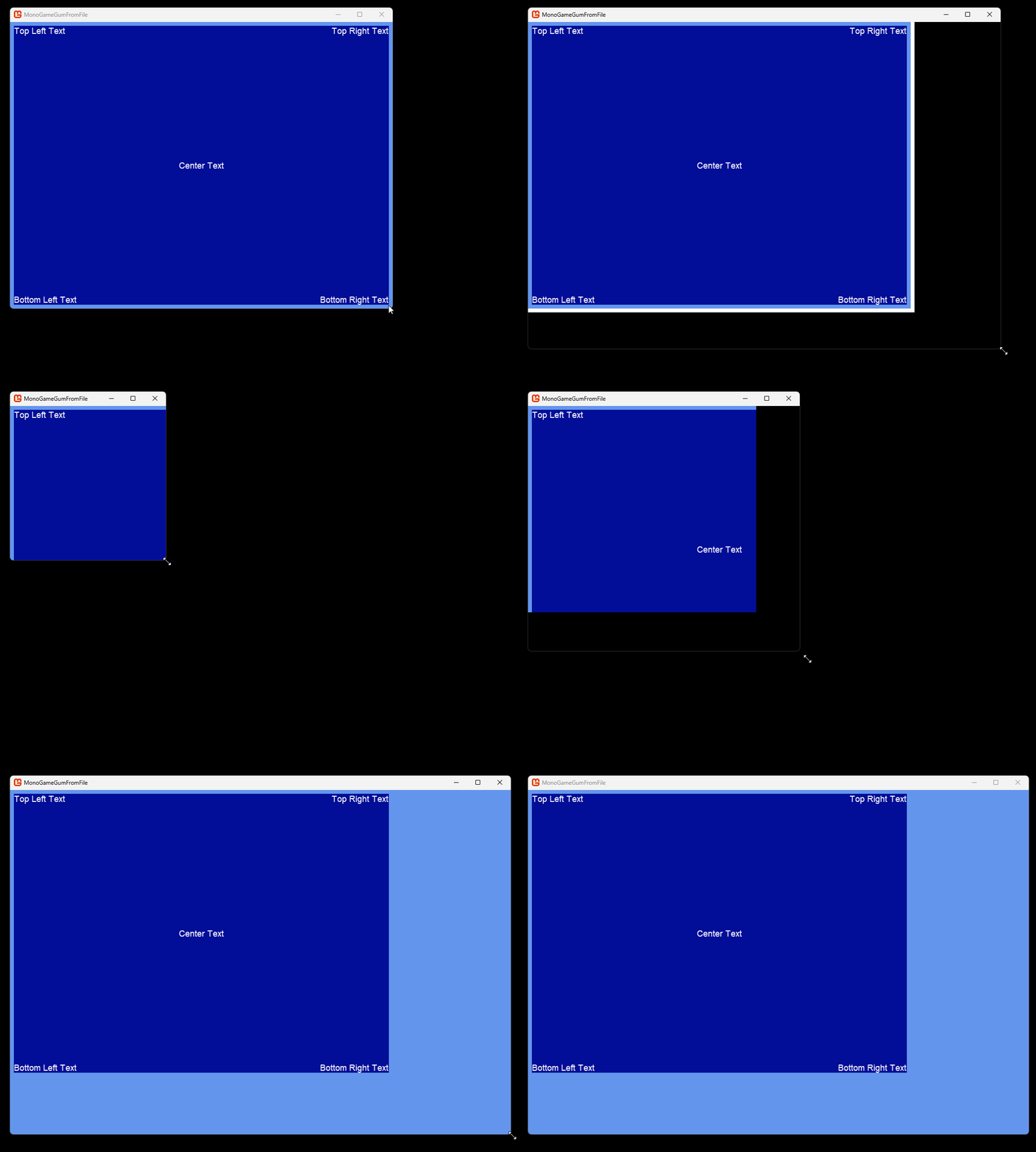
If you don't call either method, resizing the window does not adjust Gum — the canvas stays at its initial size and authored UI keeps its original layout. The objects in the following animation are properly docked to the corners and center as indicated by the displayed text:
This is sometimes the behavior you want (e.g. if you draw Gum to a `RenderTarget2D` and scale that yourself). For most games, however, you'll want one of the helpers above.
## Setting the Initial Resolution
By default Gum uses `GraphicsDevice.Viewport` to set its internal resolution on initialization. This value can be assigned in the Game's constructor by assigning `_graphics.PreferredBackBufferWidth` and `_graphics.PreferredBackBufferHeight`. Most likely your game is already doing this to set the initial Window size. The following shows an example game with Gum:
public class Game1 : Game
{
    GraphicsDeviceManager _graphics;

    GumService GumUi => GumService.Default;

    public Game1()
    {
        _graphics = new GraphicsDeviceManager(this);
        Content.RootDirectory = "Content";
        IsMouseVisible = true;

        // This sets the initial size:
        // If not explicitly set, then size values
        // default to 800x480 on desktop platforms
        _graphics.PreferredBackBufferWidth = 800;
        _graphics.PreferredBackBufferHeight = 600;
    }

    protected override void Initialize()
    {
        // Internally this will initialize using the viewport values
        GumUi.Initialize(this);
        ...
Keep in mind that the `Preferred` properties are not guaranteed, and MonoGame can choose to use different values internally. For example, if MonoGame runs on a Mac with UI scaling, then the actual resolution may not match the preferred values. The one-line helpers above handle this automatically because they re-read the back-buffer dimensions every frame; if you write your own resize handler, you'll need to read `GraphicsDevice.PresentationParameters.BackBufferWidth/Height` rather than trusting `Preferred*`.
## Custom Resize Handling
If the helpers above don't fit your case — for example you want a zoom multiplier that varies non-linearly with window size, or you want to cap zoom at a maximum factor — you can subscribe to MonoGame's `Window.ClientSizeChanged` event yourself and write the fit math you need. The helpers are built on top of this same pattern.
### Manual Expand (No Zoom)
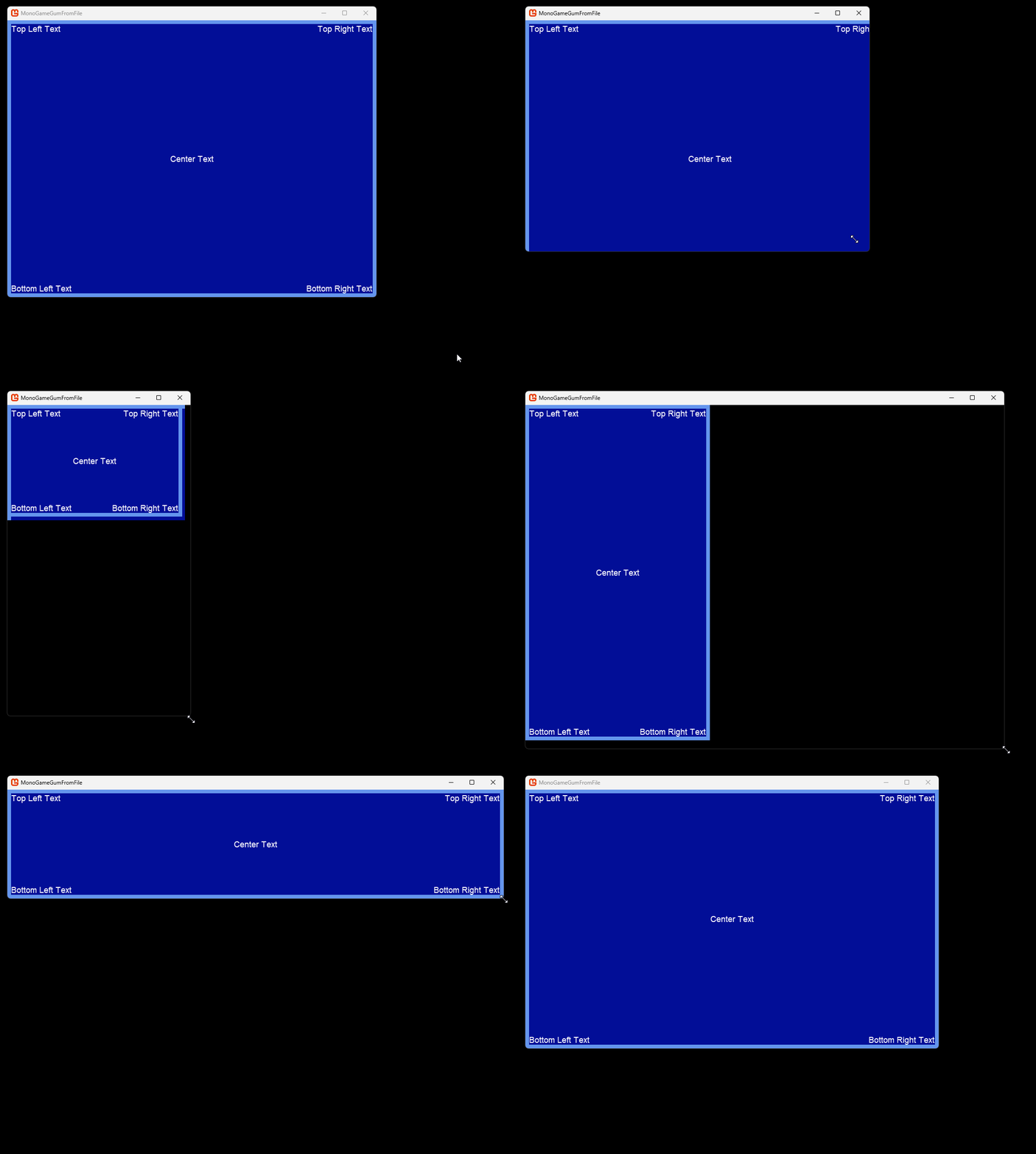
The Screen contains a Container which is sized to the entire screen with a small border around the edges. The Container has a ColoredRectangle which fills the entire Container. Each Text object is docked as indicated by its displayed string.
The following code shows how to handle a resize:
protected override void Initialize()
{
    // other initialization goes here:

    // This allows you to resize:
    Window.AllowUserResizing = true;
    // This event is raised whenever a resize occurs, allowing
    // us to perform custom logic on a resize
    Window.ClientSizeChanged += HandleClientSizeChanged;
}

private void HandleClientSizeChanged(object sender, EventArgs e)
{
    GumUI.CanvasWidth = _graphics.GraphicsDevice.Viewport.Width;
    GumUI.CanvasHeight = _graphics.GraphicsDevice.Viewport.Height;
}
You don't need to call `Root.UpdateLayout()` from a resize handler — `GumService.Update` picks up the new canvas size on the next frame and lays out automatically. Only call it explicitly if your game logic needs the new layout *immediately* during the same frame (e.g. you're about to read computed positions before the next `Update`).
Resizing the window resulting in Gum layout updates
### Manual Zoom
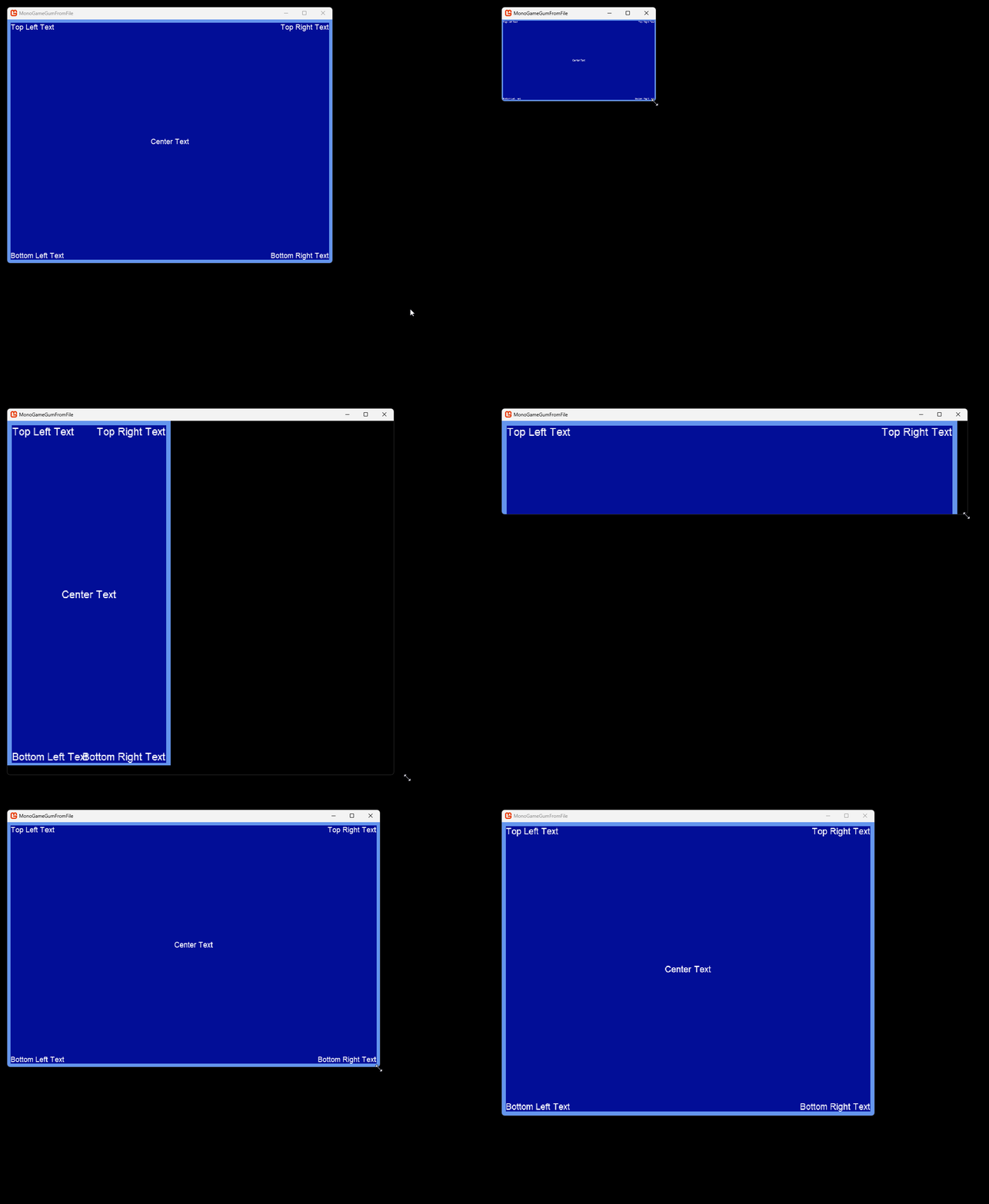
You may want to zoom your game rather than provide more visible space to the user when resizing. In this case you need to decide whether to use width or height when deciding how much to zoom your game. For this example we will use height since some users may have monitors with differing aspect ratios.
To properly zoom we need to store the original size in a variable in the Game class so that we can use it to determine the zoom level. The following code is a modified version of the code above with additional logic and variables added to handle zooming:
```csharp
protected override void Initialize()
{
// other initialization goes here:
// This allows you to resize:
Window.AllowUserResizing = true;
// This event is raised whenever a resize occurs, allowing
// us to perform custom logic on a resize
Window.ClientSizeChanged += HandleClientSizeChanged;
// store off the original height so we can use it for zooming
originalHeight = _graphics.GraphicsDevice.Viewport.Height;
}
private void HandleClientSizeChanged(object sender, EventArgs e)
{
float zoom = _graphics.GraphicsDevice.Viewport.Height / (float)originalHeight;
GumUI.Renderer.Camera.Zoom = zoom;
GumUI.CanvasWidth = _graphics.GraphicsDevice.Viewport.Width/zoom;
GumUI.CanvasHeight = _graphics.GraphicsDevice.Viewport.Height/zoom;
}
```
As with the expand example, `Root.UpdateLayout()` is only needed if your game logic depends on the new layout in the same frame as the resize.
Gum responding to resizes by zooming and adjusting canvas sizes
{% hint style="info" %}
`Renderer.Camera.Zoom` also affects immediate-mode drawing with GumBatch, since GumBatch renders through the same camera. See [Relationship with the Camera](/gum/code/rendering/gumbatch.md#relationship-with-the-camera).
{% endhint %}
### Silk.NET
Silk.NET has no `Game`/`GraphicsDeviceManager` host, so there's no `Window.ClientSizeChanged` event to subscribe to, and unlike the other backends, your project owns the Skia render surface directly. `GumService.Default.Initialize` is handed an `SKCanvas` once at startup and never re-reads it, so a resize handler needs more than just `HandleResize`. On every resize you must:
1. **Recreate the `GRBackendRenderTarget`/`SKSurface`.** Both declare a fixed logical size, separate from the GL viewport. With `GRSurfaceOrigin.BottomLeft`, Skia uses that declared height to flip rows, so once the viewport grows past a stale surface size, everything Gum draws renders shifted down by the size delta.
2. **Reassign `GumUI.SystemManagers.Canvas`** to the new surface's `Canvas`. Without this, `GumUI.Draw()` keeps rendering into the disposed `SKCanvas` from the old surface, an `AccessViolationException`.
3. **Update the GL viewport** to the new size.
4. **Call `GumUI.HandleResize(width, height)`**, which updates `GraphicalUiElement.CanvasWidth`/`CanvasHeight` and calls `Root.UpdateLayout()` for you, so elements using relative units (`RelativeToParent`, `Dock(Fill)`, etc.) reposition automatically.
{% hint style="warning" %}
Don't do this work synchronously inside the `window.Resize` event itself. Dragging a window border enters a nested "live resize" modal message loop, and Silk.NET's SDL backend can invoke `Resize` from inside that loop, where the GL context isn't guaranteed to be current. Recreating GPU resources there can crash with `AccessViolationException`. Instead, record the new size in the event and apply the full resize once per frame from your main loop, where the GL context state is well-defined.
{% endhint %}
```csharp
// Initialize
Vector2D? pendingResize = null;
window.Resize += newSize => pendingResize = newSize;
void RecreateSurface(int width, int height)
{
surface?.Dispose();
renderTarget?.Dispose();
renderTarget = new GRBackendRenderTarget(width, height, 0, 8, new GRGlFramebufferInfo(0, 0x8058)); // 0x8058 = GL_RGBA8
surface = SKSurface.Create(grContext, renderTarget, GRSurfaceOrigin.BottomLeft, SKColorType.Rgba8888);
GumUI.SystemManagers.Canvas = surface.Canvas;
}
// Main loop
while (running)
{
window.DoEvents();
if (pendingResize.HasValue)
{
var newSize = pendingResize.Value;
pendingResize = null;
gl.Viewport(0, 0, (uint)newSize.X, (uint)newSize.Y);
RecreateSurface(newSize.X, newSize.Y);
GumUI.HandleResize(newSize.X, newSize.Y);
}
// ...update and draw...
}
```
If your app manages a screen's `Width`/`Height` in pixels rather than relative units, for example a loaded `.gumx` screen sized once at startup to match the initial canvas, those pixel values do **not** track canvas size changes on their own. Re-apply them in the same block after `HandleResize`, or the screen will keep its original size while descendants anchored to its edges drift out of place as the canvas grows or shrinks:
```csharp
gl.Viewport(0, 0, (uint)newSize.X, (uint)newSize.Y);
RecreateSurface(newSize.X, newSize.Y);
GumUI.HandleResize(newSize.X, newSize.Y);
currentGumxScreen.Width = GraphicalUiElement.CanvasWidth;
currentGumxScreen.Height = GraphicalUiElement.CanvasHeight;
```
For a complete working example, see `RecreateSurface` and the `pendingResize` handling in the Gum Silk.NET sample:
{% embed url="" %}
## RenderTargets, Scaling, and Offsets
Gum can be drawn to a RenderTarget2D which can then be drawn with a SpriteBatch. By using a RenderTarget2D, the entire contents of Gum can be scaled, offset, and even rotated. This type of offset can break interaction unless the Cursor is adjusted in response to these changes by setting its `TransformMatrix`. For more information see the [Cursor TransformMatrix page](/gum/code/gum-code-reference/cursor/transformmatrix.md).
## FrameworkElement PopupRoot and ModalRoot
The FrameworkElement object has two InteractiveGues: PopupRoot and ModalRoot. These are typically created automatically by GumService but can be assigned manually. In either case, the size of these two containers is automatically managed by GumService in its Update call so you do not need to update these manually.
---
# Agent Instructions
This documentation is published with GitBook. GitBook is the documentation platform designed so that both humans and AI agents can read, navigate, and reason over technical content effectively. Learn more at gitbook.com.
## Querying This Documentation
If you need additional information that is not directly available in this page, you can query the documentation dynamically by asking a question.
Perform an HTTP GET request on the current page URL with the `ask` query parameter, and the optional `goal` query parameter:
```
GET https://docs.flatredball.com/gum/code/layout/resizing-the-game-window.md?ask=&goal=
```
`ask` is the immediate question: it should be specific, self-contained, and written in natural language.
`goal` is optional and describes the broader end goal you are ultimately trying to accomplish on behalf of the user. GitBook uses it to tailor the answer towards what is most useful for that goal.
The response will contain a direct answer to the question and relevant excerpts and sources from the documentation.
Use this mechanism when the answer is not explicitly present in the current page, you need clarification or additional context, or you want to retrieve related documentation sections.