# Control Customization in Gum Tool

## Introduction

Gum Forms controls can be fully customized in Gum. Customization using the Gum tool allows immediate previewing of states.

## Setup

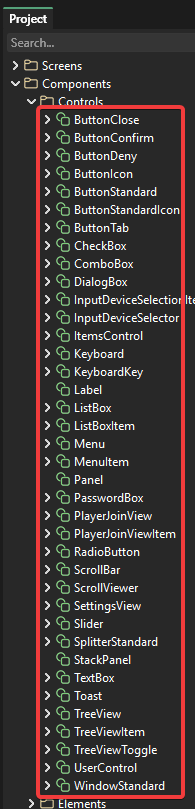
Before customizing controls you should add the default set of forms components to your project. You can check if these components exist by looking in the Components folder.

<figure><img src="/files/M04QZJ2gGHl26zeGauU2" alt=""><figcaption><p>Forms Components in Gum</p></figcaption></figure>

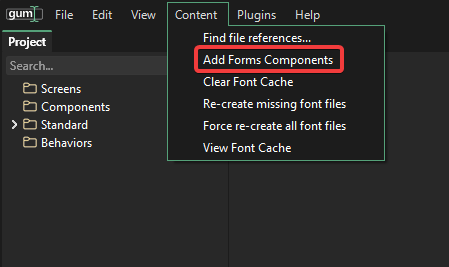
If you do not have these components you can add them by clicking Content -> Add Forms Components

<figure><img src="/files/SUH0Pwxq55qBGWsQtEzA" alt=""><figcaption><p>Add Forms Components if you do not already have them</p></figcaption></figure>

## Creating New Variants

Your game may require multiple types of common components. For example, you may need to have buttons which show different colors depending on their use.

Any component can be copied and modified without changing the original.

First we can create a duplicate of an existing component:

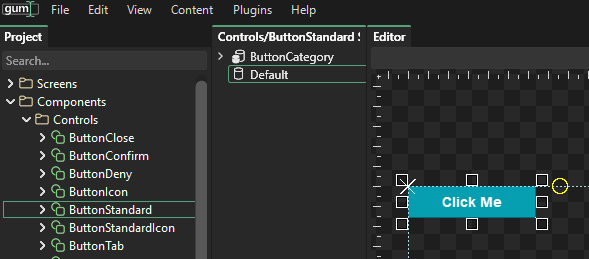
1. Select the button component you would like to copy. For example select Controls/ButtonStandard\\

   <figure><img src="/files/BHi4fjg6AQdu4yAWRrXA" alt=""><figcaption><p>ButtonStandard in Gum</p></figcaption></figure>
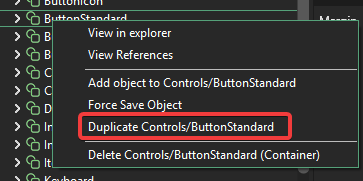
2. Duplicate the component by right-clicking and selecting the Duplicate item\\

   <figure><img src="/files/K64KNXEzvpYWKzmxolOZ" alt=""><figcaption><p>Right-click duplicate item</p></figcaption></figure>
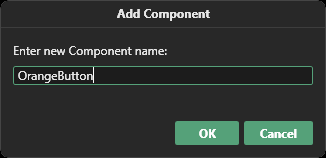
3. Enter a new name for the component, such as OrangeButton\\

   <figure><img src="/files/4SYHawMOtQ7lQO3RlZHc" alt=""><figcaption><p>Enter component name</p></figcaption></figure>

Now we can modify the newly-created component. Most customizations are allowed, but keep in mind that ultimately the component's states are used when your game runs to reflect the control's actions such as being clicked.

To make the button appear orange, we need to modify each of the button's states. We can do this by first selecting the instance in the button that we would like to modify. Then we need to modify the instance in every state.

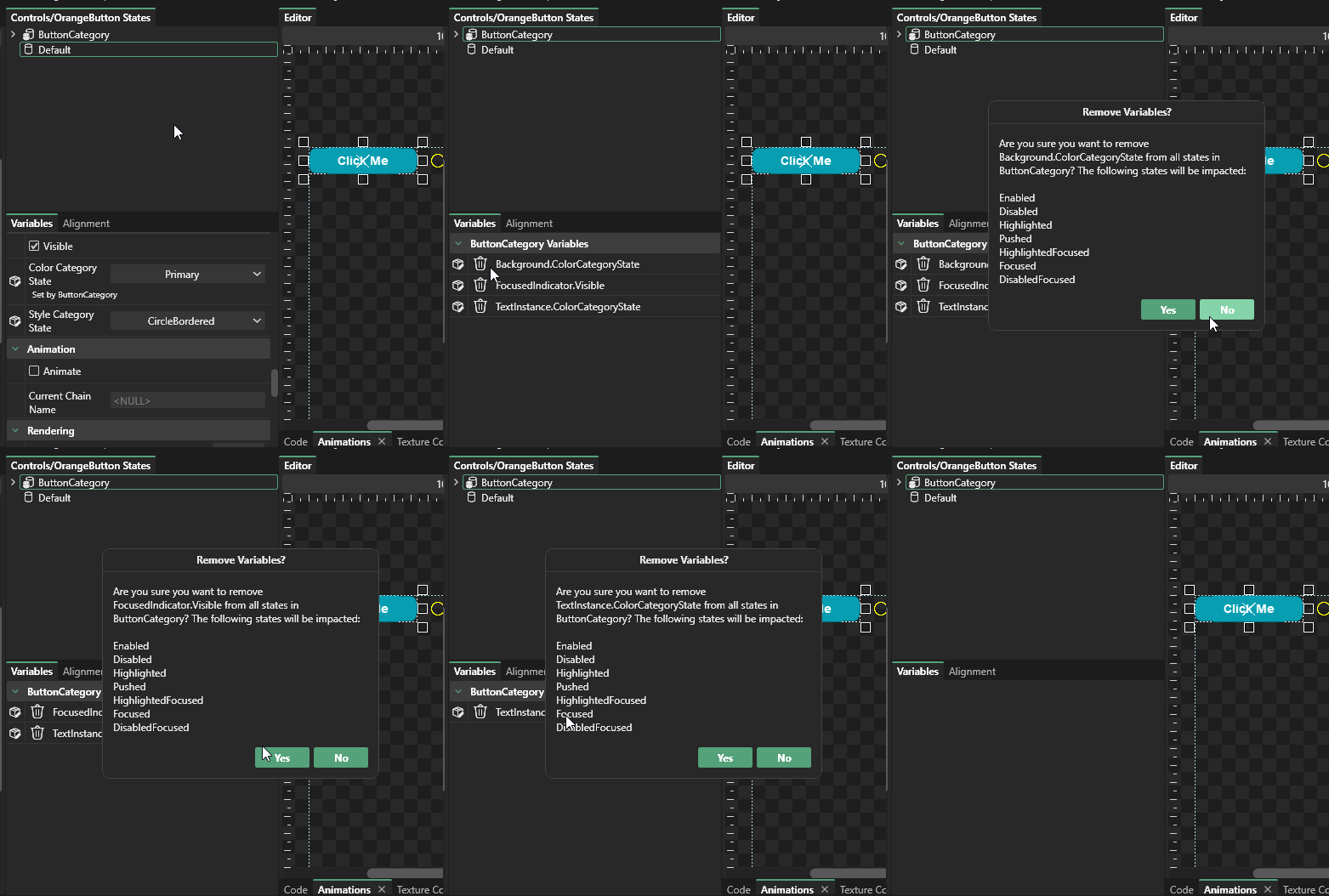
Keep in mind that your component may already have variables associated with each of the states, so you may want to remove the existing variables first so that they do not conflict with the changs you are about to make. You can do this by selecting the category and pressing the X button next to all variables.

<figure><img src="/files/T5gAn0SnPh8nE2wX8dUG" alt=""><figcaption></figcaption></figure>

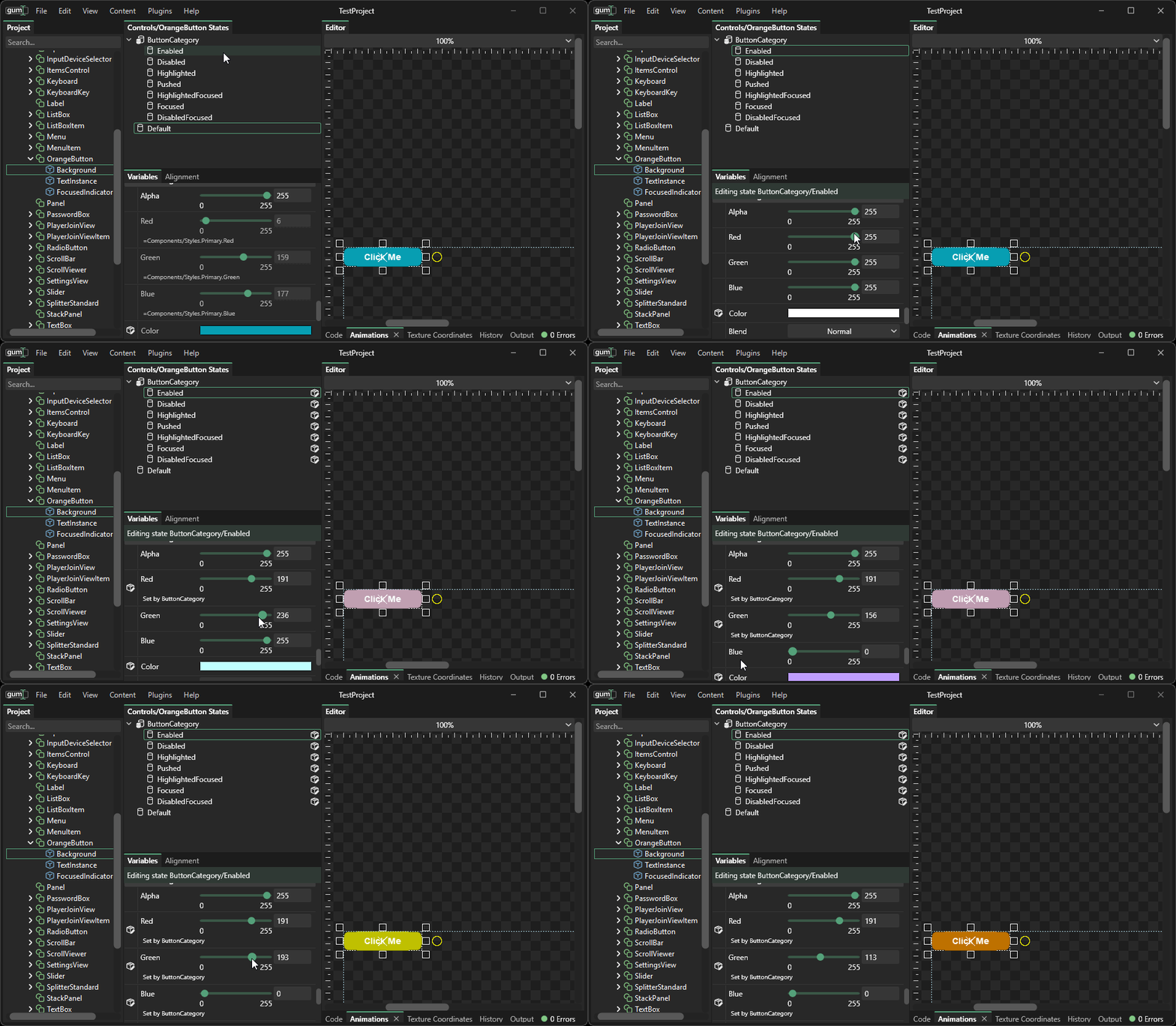
Once all variables have been removed, we can add the changes we want for each state. Select OrangeButton's BackgroundInstance. With this instance selected, select the Enabled state. Change the BackgroundInstance's color with this state selected to change the default appearance of the button.

<figure><img src="/files/bJ3XOe3XbPBhQHVvZ8XS" alt=""><figcaption><p>Change the Background to orange in the Enabled state</p></figcaption></figure>

Repeat these steps for each of the states, adjusting the color as desired. Also, be sure to modify the default state for the button. This state does not get used at runtime, but it gets used in the Gum tool. This state should probably be the same as your Enabled state, so set the backgrould color to the same values.

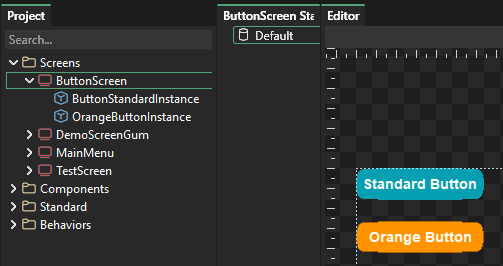
After you are finished, you can use this new component in any other screen or component.

<figure><img src="/files/pb2sDAOWoFxC1Ga3sIcu" alt=""><figcaption><p>Standard and orange button in a screen called GameScreen</p></figcaption></figure>


---

# Agent Instructions: Querying This Documentation

If you need additional information that is not directly available in this page, you can query the documentation dynamically by asking a question.

Perform an HTTP GET request on the current page URL with the `ask` query parameter:

```
GET https://docs.flatredball.com/gum/code/styling/control-customization-in-gum-tool.md?ask=<question>
```

The question should be specific, self-contained, and written in natural language.
The response will contain a direct answer to the question and relevant excerpts and sources from the documentation.

Use this mechanism when the answer is not explicitly present in the current page, you need clarification or additional context, or you want to retrieve related documentation sections.