> For the complete documentation index, see [llms.txt](https://docs.flatredball.com/gum/llms.txt). Markdown versions of documentation pages are available by appending `.md` to page URLs; this page is available as [Markdown](https://docs.flatredball.com/gum/gum-tool/fonts.md).
# Font Settings
## Introduction
The Font Settings tab controls how Gum bakes bitmap fonts for the whole project: which characters each font includes, which program generates the font files, and how the letters are spaced. These settings used to sit in the Project Properties tab.
To open the Font Settings tab, select Edit -> Font Settings.
{% hint style="warning" %}
Screenshot needed: the Font Settings tab showing the Character Ranges table and the Generation settings.
{% endhint %}
{% hint style="info" %}
The Font Settings tab is available in November 2026, or now if building Gum from source. Before then, these settings are in the Project Properties tab and a project can hold only one Font Ranges value.
{% endhint %}
## Character Ranges
The Character Ranges table controls which characters Gum includes when it bakes a font. Each row has a **Font** and the **Ranges** that font includes. The first row, **All other fonts**, is the default: it applies to every font that has no row of its own. The Ranges value is ignored when using custom font (.fnt) files.
The default Ranges value is `32-126,160-255` which maps to the first page of the Bitmap font generator character set, labeled as **Latin + Latin Supplement**.
Various websites provide a list of unicode character sets such as
### Modifying Ranges Directly
Ranges can be modified to add or remove characters from a .fnt file. The format supports comma separated ranges, including individual values. For example, to add the **Latin Extended** A set, the default Ranges value can be changed to `32-126,160-255,256-383`. Note that the last range of 256-383 could be merged with the previous to produce the following range: `32-126,160-383`. Note that the ranges are inclusive on both ends, so a range of 160-383 will include the characters 160 and 383 along with all values in between.
Changing a range immediately refreshes the page. Note that all fonts are re-created so this operation can take some time.
The following animation shows the Ā character being included and excluded from the default range, causing it to appear and disappear in the displayed text.

Note that expanding the character set results in larger font PNG files which can impact the size and performance of games using the Gum files.
Gum saves a range as you type it, and bakes fonts only when every range is valid. A range is valid when it is a comma separated list of numbers or `start-end` pairs with no spaces. Gum removes spaces for you, and shows a red message under any other invalid range.
### Ranges for One Font
A project that mixes fonts rarely wants the same characters in each one. A Chinese font needs thousands of characters that a Latin font never uses, and an icon font needs a small range that no text font has. A range for one font keeps each font's atlas to the characters it needs.
To give a font its own range:
1. Click **Add Font Range**.
2. In the new row's **Font** box, pick one of the fonts your Text objects use, or type the name. For an installed font, use the family name, such as `Noto Sans SC`. For a font file, use the project-relative path exactly as the Text names it, such as `Fonts/Icons.ttf`.
3. Type the characters that font needs in **Ranges**, such as `32-126,19968-40959` for Latin and CJK Unified Ideographs.
Every size and style of that font uses the row, so `Noto Sans SC` at size 18 and size 32, bold or not, bakes the same characters. Fonts without a row keep using the default row. Click the **X** at the end of a row to remove it, which returns that font to the default range. The default row cannot be removed.
Gum marks a row that cannot do its job:
* An amber message means no Text in the project uses that font, so the row has no effect. A misspelled font name looks like this. The same problem appears as **GUM0010** in the [Errors tab](/gum/gum-tool/editor-tab.md).
* A red message means the range is not valid, or the row has no font, or another row already names the same font. A row with no font, and a second row for a font, are not saved.
### Modifying Ranges with .gumfcs File
A .gumfcs file can be used to control the default range. This is especially useful if you have the text that is used by your game (such as a localization file), but you do not know which characters are actually needed.
{% hint style="warning" %}
Before making changes, be sure to back up your Gum project or have a commit that you can revert to in Git - switching to a .gumfcs file removes the previously-assigned values.
{% endhint %}
To use a .gumfcs file:
1. Check the **Use Font Character File (.gumfcs)** option. Gum creates a .gumfcs file if one doesn't exist.
2. Navigate to the location where your Gum project is located (.gumj or .gumx)
3. Open the .gumfcs file in a text editor
4. Add or remove characters in the .gumfcs file
5. Save the file to disk - Gum automatically updates the character sets in response
While the .gumfcs file is in use, the **All other fonts** row shows the characters from the file and cannot be typed in. Rows for individual fonts stay editable and still apply to their fonts.
### Font Character Limitations
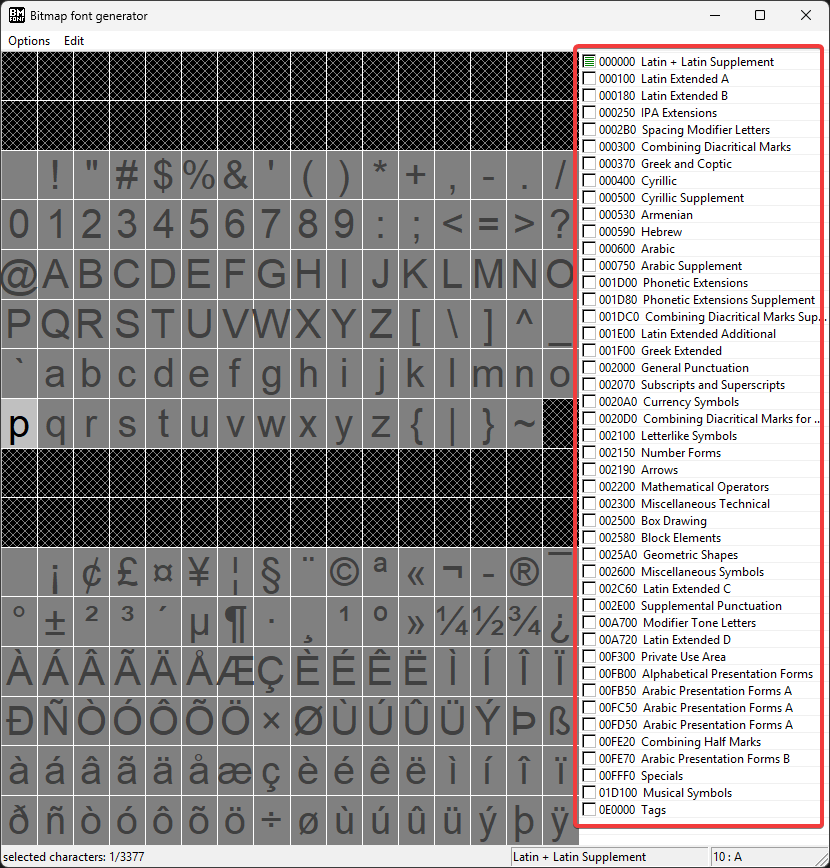
Each font has its own range of supported characters. You can open Bitmap Font Generator to see which characters are supported for each type. The following screenshot shows the font ranges supported by the Arial font.
Characters supported by the Arial font
Notice that the CJK characters are not supported. By contrast the Batang font face supports CJK Unified Ideographs as shown in the following image:
CJK Unified Ideographs in the Batang font
Gum does not check whether the font range you have added is supported in each of the font faces used in your application. If you are extending your character set, you should verify that the font is supported in Bitmap Font Generator.
## Font Generator
The Font Generator property controls which tool Gum uses to bake `.fnt` files and PNG atlases into the project's FontCache. There are two options:
* **KernSmith**: a standalone font generator that Gum integrates with. This is the default for new projects.
* **BMFont**: [Bitmap Font Generator](https://www.angelcode.com/products/bmfont/), a separate external tool.
You can change the setting at any time in the **Font Settings** tab. The next FontCache rebuild uses the chosen generator.
BMFont runs only on Windows. On macOS and Linux, Gum generates fonts with KernSmith even when a project is set to BMFont, and the Font Generator property is read-only. The project keeps its BMFont setting, so fonts generated on Windows still use BMFont.
{% hint style="info" %}
**As of May 2026:** New projects default to **KernSmith**. Before this, the default was **BMFont**. Existing projects keep their current setting. Opening an older project in a newer version of the Gum tool does not switch its generator, and there is no auto-migration.
{% endhint %}
{% hint style="warning" %}
Switching the Font Generator wipes and re-creates every font in the FontCache. The two generators produce slightly different output for the same `.ttf` and Ranges. Glyph shapes, antialiasing, and reported sizes can shift a small amount. After switching, review your text in the editor to confirm everything still looks the way you expect. Because the rebuild is automatic, switching back is just as easy if you want to compare.
{% endhint %}
### Why Pick KernSmith
* **Faster font generation in the tool**, especially when editing Ranges or adding new fonts. KernSmith runs in-process; BMFont shells out to the external Bitmap Font Generator executable for every rebuild.
* **Consistency between authoring and runtime.** Runtimes that perform dynamic font generation (for example web targets, where shipping a `.ttf` is smaller than shipping pre-baked atlases for large character sets) use KernSmith. Authoring with KernSmith means the glyphs you see in the editor match what the player sees at runtime. See [Fonts on Web](/gum/code/files-and-fonts/fonts/fonts-web.md) for more on the web tradeoff, especially for CJK projects.
* **Future feature support.** Upcoming font features such as colored outlines and gradients are planned to land on KernSmith first; BMFont's external pipeline will not receive them. These features are not yet available.
### Why Someone Might Stick with BMFont
* They have an existing project with an established FontCache, fine-tuned in BMFont, and don't want to rebuild it.
* They have a specific BMFont tooling or workflow they rely on.
For background on the runtime side of font generation, see [Fonts](/gum/code/files-and-fonts/fonts.md).
## Font Spacing Horizontal and Font Spacing Vertical
The Font Spacing Horizontal and Font Spacing Vertical values control the amount of space (padding) added between each letter in the generated .fnt file. These values do not affect the size of the letters in the Editor tab or at runtime, but the additional spacing can be used to separate the letters. This is important if your font rendering may end up implementing any kind of blurring to improve font appearance. This type of blurring may occur if:
* You are using linear filtering in your project
* If you support zooming out, and if the font texture is blurred when creating mipmaps
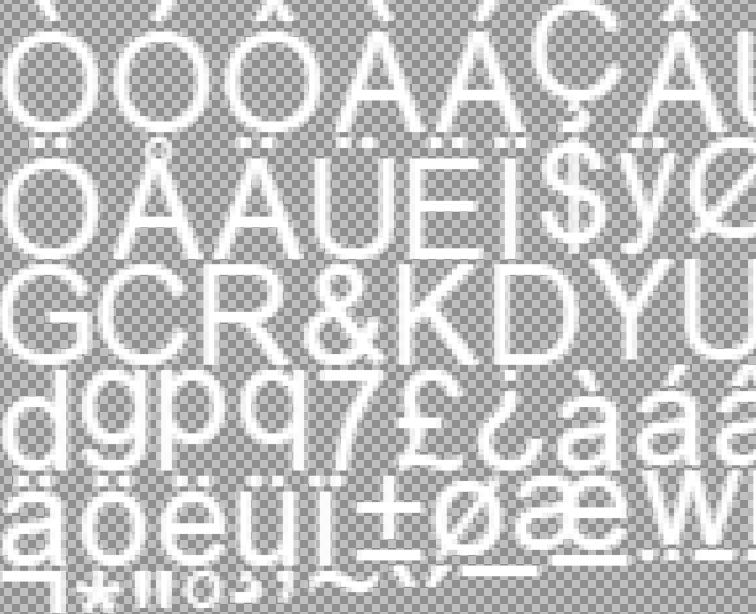
The following image shows a portion of an Arial 26 font png zoomed in with Font Spacing Horizontal and Font Spacing Vertical both set to 1 (default):
Zoomed in Arial 26 font
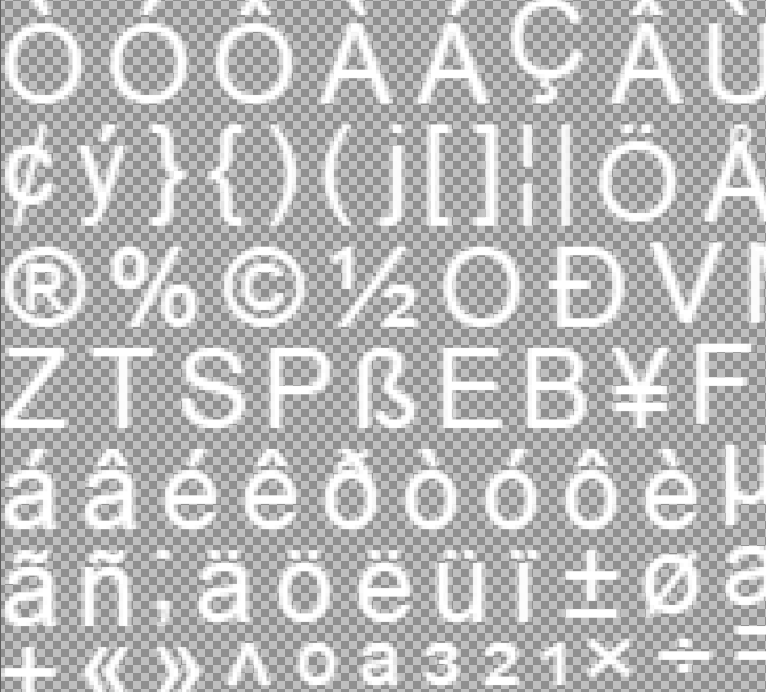
If the Font Spacing Vertical and Font Spacing Horizontal are both increased to 5, then the spacing in between letters increases to 5 pixels, as shown in the following image:
Font Horizontal Spacing and Font Vertical Spacing of 5
Typically the two values should be set equally, and the amount of spacing needed depends on how much blurring (mipmap levels) is needed.
## Auto-Size Font Outputs
When Auto-Size Font Outputs is checked, Gum searches for the smallest texture that keeps each font on a single page. The result is fewer PNGs, but font generation can take much longer. The setting applies to the BMFont generator. KernSmith sizes its own atlases.
---
# Agent Instructions
This documentation is published with GitBook. GitBook is the documentation platform designed so that both humans and AI agents can read, navigate, and reason over technical content effectively. Learn more at gitbook.com.
## Querying This Documentation
If you need additional information that is not directly available in this page, you can query the documentation by asking a question.
Perform an HTTP GET request on the following URL with the `ask` and `goal` query parameters:
```
GET https://docs.flatredball.com/gum/gum-tool/fonts.md?ask=&goal=
```
`ask` is the immediate question: it should be specific, self-contained, and written in natural language.
`goal` is what the user is ultimately trying to achieve, the reason they need the answer. Sharing it helps GitBook give you a better, more relevant answer. A goal is most helpful when it describes the outcome the user wants rather than restating the question. For example, with `ask=how do I create an API token`, a goal like `automate deployments from our CI pipeline` lets GitBook tailor the answer to that use case.
The response will contain a direct answer to the question and relevant excerpts and sources from the documentation.
Use this mechanism when the answer is not explicitly present in the current page, you need clarification or additional context, or you want to retrieve related documentation sections.
%20(1)%20(1)%20(1)%20(1)%20(1)%20(1)%20(1).png?alt=media)