Use Gradient

Use Gradient is a shape property supported by Circle, Rectangle, ColoredCircle, RoundedRectangle, Arc, and Line.

Introduction

The Use Gradient property controls whether a shape uses gradient values if true or a solid color if false.

Rectangle with Use Gradient set to false

If this value is set to true, then additional properties appear for controlling the gradient.

Rectangle with Use Gradient set to true showing gradient values

Gradient start color and Color2

A gradient creates a smooth interpolation from a start color to Color2.

For Circle, Rectangle, and Arc, the gradient starts from the shape's own color — for Circle and Rectangle that is the Fill color when the shape is filled or the Stroke color when it is outline-only, and for Arc it is the shape's Color. To adjust where the gradient begins, change that color; to adjust where it ends, change Color2. Because the start is the color the shape already shows, turning Use Gradient on and off does not produce a sudden color change.

The older ColoredCircle and RoundedRectangle shapes instead expose a dedicated Color1 for the gradient start.

Gradient Color values

Earlier preview builds gave Circle and Rectangle a separate Color1 for the gradient start. The start is now the shape's Fill/Stroke color, so Color1 no longer appears for these shapes. Arc likewise derives its gradient start from its Color.

Gradient X1 and 2, Gradient Y1 and 2

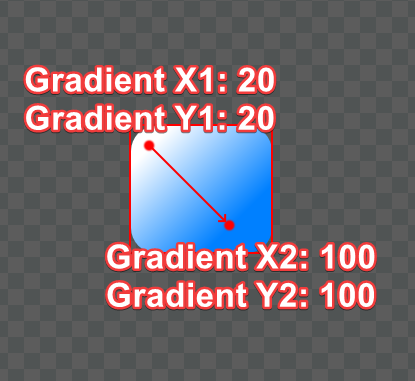
The gradient values appear at their respective values at the points specified by Gradient X1, Gradient Y1, Gradient X2, and Gradient Y2. For example the gradient points could be visualized as shown in the following image:

Gradient positions visualized over a RoundedRectangle

Changing the Gradient X or Y values changes the start and end points for the gradient.

Changing gradient X and Y values changes the gradient direction and interpolation distance
Gradient X1 and X2 Units, Gradient Y1 and Y2 Units

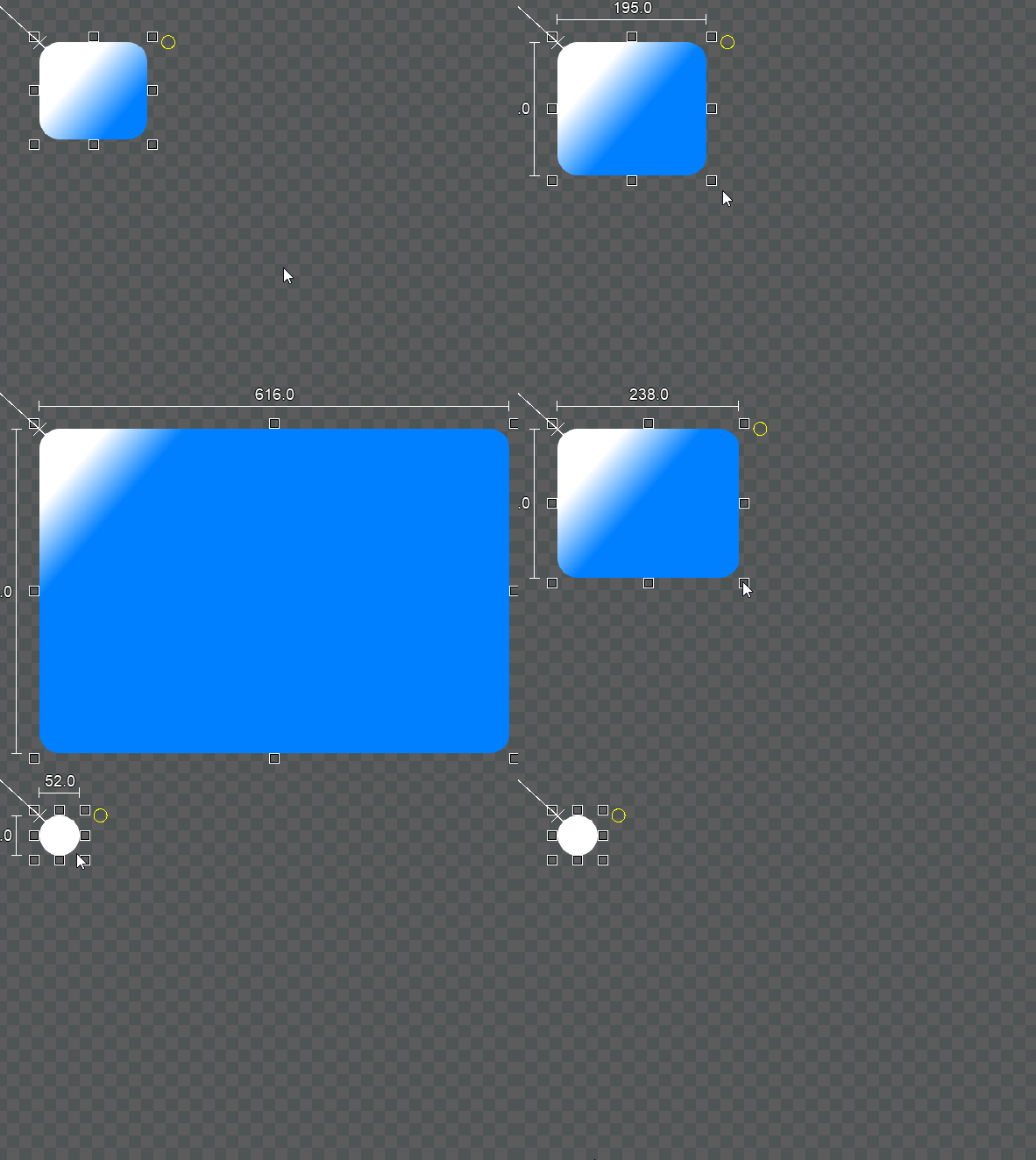
Gradient values use Units similar to X Units and Y Units. By default, gradient values are relative to the top-left of the element. Since the gradient values are not affected by size, changing the size of the element does not affect the gradient.

By default gradient values are relative to the element's top-left corner
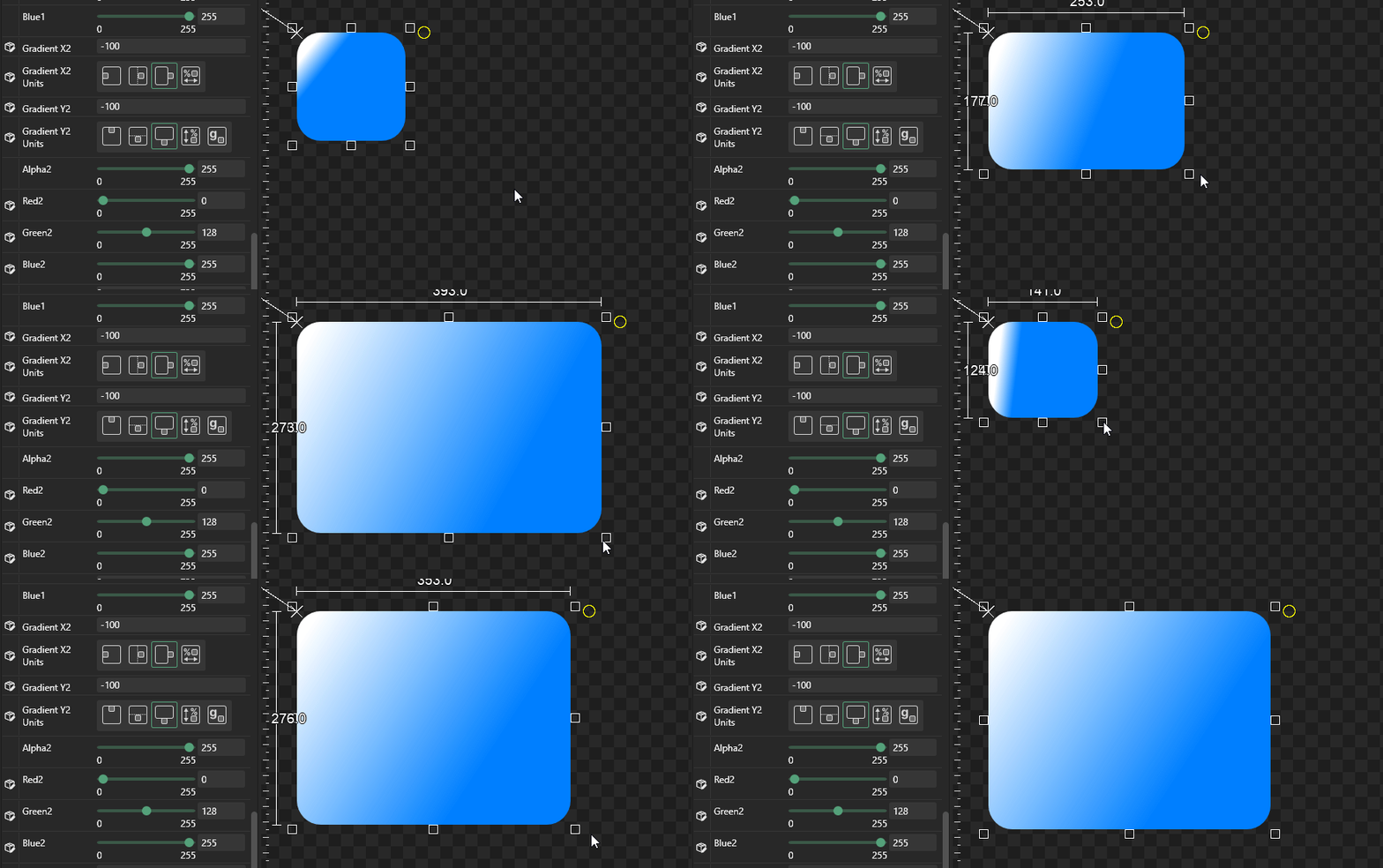
The gradient X and Y units can be changed. Each value can be set independently. For example, the X2 and Y2 units can be adjusted to be relative to the bottom-right corner of the instance. The following shows a RoundedRectangle with the Gradient X2 and Y2 values 100 pixels up and to the left of the bottom-right corner. If the RoundedRectangle is resized, then the gradient adjusts in response.

Gradient X and Y units relative to the bottom right of the instance.
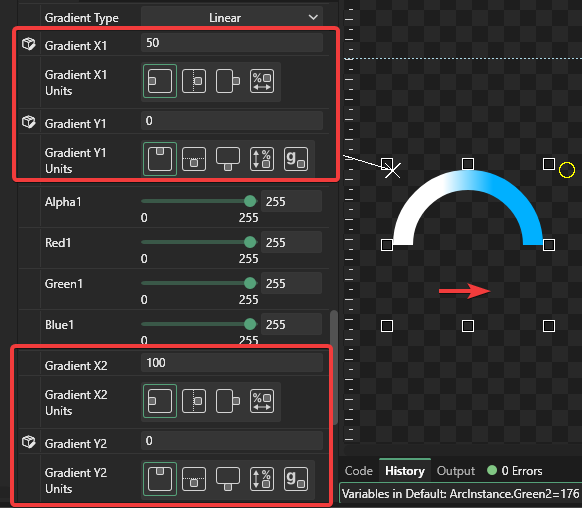
Gradient X and Y values can exist outside of the visual space of the instance, and even outside of its bounds. The following image shows an Arc with a gradient which is defined below the visual part of the arc. Notice that the Gradient Y values are both 0 PixelsFromBottom.

Gradient Type

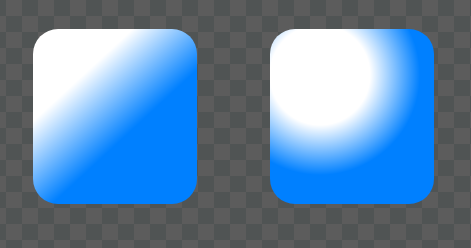
Gradient Type controls whether the gradient is linear or radial. Radial gradients place the center of the radial gradient at X1,Y1 and the edge of the radial gradient at X2, Y2.

Linear Gradient Type on the left, Radial Gradient Type on the right

Last updated

Was this helpful?