> For the complete documentation index, see [llms.txt](https://docs.flatredball.com/gum/llms.txt). Markdown versions of documentation pages are available by appending `.md` to page URLs; this page is available as [Markdown](https://docs.flatredball.com/gum/code/events-and-interactivity/mouse-and-touch-screen-cursor.md).
# Mouse and Touch Screen (Cursor)
## Introduction
Gum supports reading from the mouse and touch screen for events. Both the mouse and touch screen report their actions through the `Cursor` class. Controls which respond to click events (such as `Button` and `CheckBox`) automatically read from the `Cursor`.
## Runtime Compatibility
Touch support varies by runtime. Where a runtime has no real touch API, touch is mouse-emulated instead.
| Runtime | Touch Support | Notes |
| -------------------------- | -------------- | ------------------------------------------------------------------------------------------------------------------------------------- |
| raylib | Partial | Single tap may not register as a click; a longer tap or a second tap works. Selection-style interactions (e.g. list items) work fine. |
| Silk.NET | Full | ✅ |
| MonoGame / KNI (DesktopGL) | Mouse-emulated | No real touch API on Windows; see note below. |
raylib's default desktop backend (GLFW) has no real touch input. See raylib's own [source comment acknowledging this](https://github.com/raysan5/raylib/blob/4640c849208079d758d8f0dbb4b5b7816db5ed0c/src/platforms/rcore_desktop_glfw.c#L1305-L1310). raylib's SDL backend does support real touch, but isn't what Gum's raylib runtime currently uses.
{% hint style="warning" %}
**A Windows touchscreen cannot be used to test `InputDevice.TouchScreen`-specific behavior on MonoGame or KNI's DesktopGL backend.** Tapping the screen still moves the cursor and registers clicks and drags, because Windows silently promotes untranslated touch input into synthetic mouse messages for apps that haven't opted into raw touch handling; DesktopGL's underlying SDL2 layer never wires up real touch events at all. That promoted input arrives as ordinary mouse input, so `Cursor.LastInputDevice` reports `InputDevice.Mouse`, never `InputDevice.TouchScreen`. MonoGame's WindowsDX backend does populate `TouchPanel`, but from a single mouse-derived point, not independent hardware touch tracking, so it has the same limitation.
Code that only reacts when `LastInputDevice == InputDevice.TouchScreen` will look correct in a Windows test (since the mouse-emulated input still drives clicks and drags) while remaining untested for real touch. Verifying that code path requires a platform whose windowing layer genuinely captures touch, such as Android or iOS.
{% endhint %}
## Code Example: Accessing the Cursor
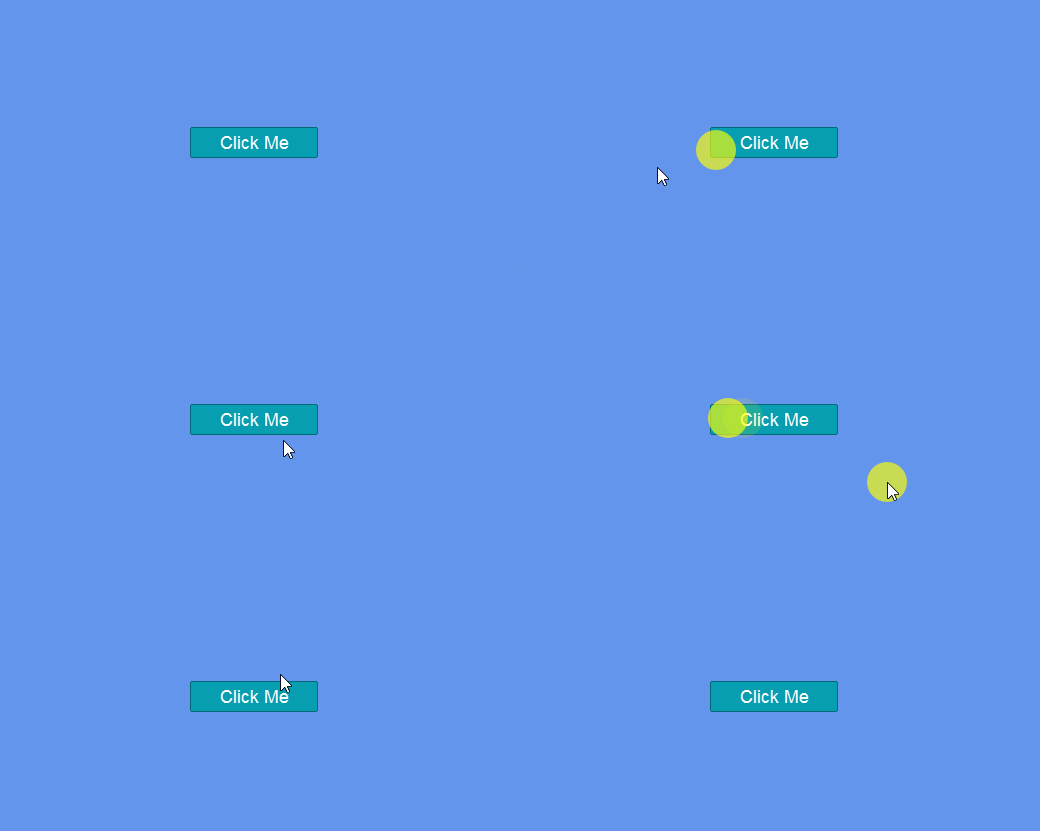
GumService contains an instance of the `Cursor` class. The following code shows how to access the Cursor class and create rectangles when the `Cursor` detects a click.
```csharp
protected override void Update(GameTime gameTime)
{
GumUI.Update(gameTime);
Cursor cursor = GumUI.Cursor;
if(cursor.PrimaryClick)
{
ColoredRectangleRuntime rectangle = new ();
rectangle.AddToRoot();
rectangle.X = cursor.XRespectingGumZoomAndBounds();
rectangle.Y = cursor.YRespectingGumZoomAndBounds();
rectangle.Color = Color.Red;
}
base.Update(gameTime);
}
```
Rectangles created in response to Cursor clicks
## Checking Control Over
The `Cursor` class reports information about what it is over which can be checked in events or in an Update call.
### FrameworkElementOver
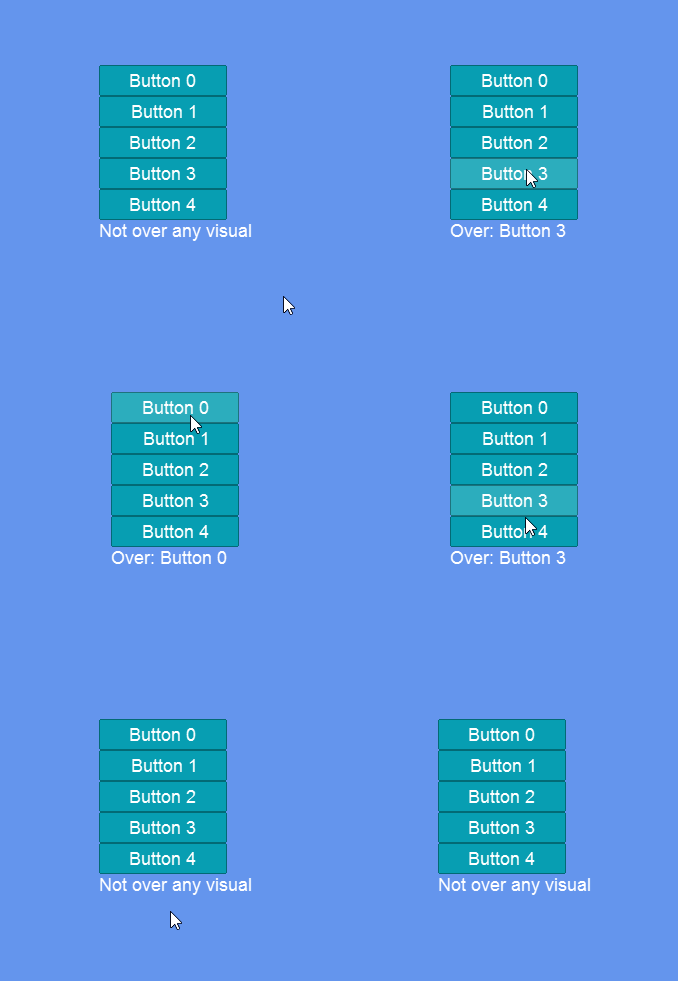
The `FrameworkElementOver` property returns the FrameworkElement (control) that the `Cursor` is over. The following code shows how to detect and display the control that the button is over.
```csharp
// Class scope
Label label;
protected override void Initialize()
{
GumUI.Initialize(this);
StackPanel panel = new ();
panel.AddToRoot();
panel.Name = "Button Panel";
panel.Anchor(Anchor.Center);
for(int i = 0; i < 5; i++)
{
Button button = new();
panel.AddChild(button);
button.Text = "Button " + i;
button.Name = button.Text;
}
label = new Label();
panel.AddChild(label);
base.Initialize();
}
protected override void Update(GameTime gameTime)
{
GumUI.Update(gameTime);
var control = GumUI.Cursor.FrameworkElementOver;
if(control == null)
{
label.Text = "Not over any visual";
}
else
{
label.Text = "Over: " + control.Name;
}
base.Update(gameTime);
}
```
Cursor.WindowOver displaying the element that the cursor is over
[Try on XnaFiddle.NET](https://xnafiddle.net/#snippet=H4sIAAAAAAAAA31RTU8CMRD9K5OeloRsCMYLxINs1JAYNIrx4Hoo7CAN3SnptqAS_rvTFlnw4B5mdj7ezOubnRg3d74WA2c9doVvFH00YvAmOJm_KosLK2sU711RYz1DyzVxL2eoQQc7FF2hSDkltfpGrj07OV89SuKGdbRXQLjNOsOSYpxfV9XUPBnjTnITXsGNpe_1-v2Rd84QxBkp02JpvjQ2Sy4vkBzaMGVhLGSKHCie0huyC8CLAi75P84YJdspaVcS8HfYMkuuJRlqR6LFUukqSz2_xRTlU_x0fymnILkRqHPA4Y0ncK7vS4oyJgIQhT3XKlGITZ0gtl9X0gWhN9LC3JCzJqD5Wi_jvPC2YWFuw8m2xq5uNNYs0sMGLc9UC8iOCF7otW71iBvOXzUxDgxDQdIXbFTjZXsPJo66wf_gYevgjyaH9VGMMEXsfwCN5EJzgAIAAA)
### `VisualOver`
The Cursor class also provides a `VisualOver` property. This can be used to determine the specific Visual that the cursor is over. A Visual will only be returned if the following are true:
1. The Visual's HasEvents is set to true
2. The Visual inherits from InteractiveGue
If a `VisualOver` is not null, then that visual consumes cursor events. If that visual happens to be the `Visual` for a `FrameworkElement`, then it passes those events to `FrameworkElement`. If the Visual is either not part of a `FrameworkElement`, or if it is a child of a `FrameworkElement`, then it will consume events, preventing the `FrameworkElement` itself from receiving events.
For information on which controls support events, see the [Visual Events page](/gum/code/events-and-interactivity/visual-events.md#visual-types-with-events).
### `HasCursorOver`
`GraphicalUiElement` instances can be manually checked for whether the cursor is overlapping them. `HasCursorOver` method is a pure bounds check - it does not check if the `GraphicalUiElement` inherits from `InteractiveGue`, nor does it perform overlapping tests. This can be used for pure hit-tests.
The following code creates a rectangle and checks if the cursor is overlapping the rectangle:
using RenderingLibrary; // needed for extension method

// Class scope
Gum.Forms.Controls.Label label;
RectangleRuntime rectangle;

protected override void Initialize()
{
    GumUI.Initialize(this);

    label = new Label();
    label.AddToRoot();

    rectangle = new RectangleRuntime();
    rectangle.AddToRoot();
    rectangle.Width = 100;
    rectangle.Height = 100;
    rectangle.X = 100;
    rectangle.Y = 100;

    base.Initialize();
}

protected override void Update(GameTime gameTime)
{
    GumUI.Update(gameTime);

    var cursor = GumUI.Cursor;
    var isOver = rectangle.HasCursorOver(
        cursor.XRespectingGumZoomAndBounds(),
        cursor.YRespectingGumZoomAndBounds());

    label.Text = $"Cursor is over rectangle: {isOver}";

    base.Update(gameTime);
}
[Try on XnaFiddle.NET](https://xnafiddle.net/#snippet=H4sIAAAAAAAAA31QW0vDMBT-KyH40EEpdY8tPkwfdDAQysRN60O6HLtAk4xc5mXsv3uSzs7J9CWQ73a-c3Z0am-9pIUzHlLqrVCtpcUzRTB7FAZeDZNAU1qB4mCQnYnGMPNBX1IqQTZgUE5nrIGOdOEta1XByjHVdlB55YQEYr6BEpOEEk6wTnwCGqOFXBEFbySGJCMMiGg24XyuK61dxIaMg_r3kFPRX2bcibs1Rlzm-Ql-B6JduzPE4gy2PGC4jd9w5sImW2bIyhurDZJ4vYdpdhO_6AycsPdbCNyPmcz2ksAktert2aICu0ERHhtznrSWE8WvtVfcJqN0kC3_kx2vOIf3sNZF7fN8PO7nYRmiQ5uhS0F2fcF9ryvp_gvGXgjfGwIAAA)
## Adjusting the Cursor for Scaled or Offset Rendering
If your game draws Gum's output through a `RenderTarget2D`, scales it with a `SpriteBatch` matrix, or otherwise transforms the rendered UI, the raw cursor position no longer lines up with what the player sees. Gum offers two ways to compensate, depending on whether all of your UI shares one coordinate space or several coexist in the same frame.
### One coordinate space: Cursor.TransformMatrix
When every Gum visual is transformed the same way (for example, the entire UI is drawn into one render target and scaled to fit the window), set a single `Cursor.TransformMatrix`. It is applied once to the cursor position before any hit-testing, so clicks land on the visual under the mouse. See [TransformMatrix](/gum/code/gum-code-reference/cursor/transformmatrix.md) for a full example.
### Several coordinate spaces at once: HitTestTransformMatrix
A single cursor transform cannot serve two coordinate spaces at the same time. A common case is game UI drawn into a scaled `RenderTarget2D` while a separate editor or debug UI is drawn straight to the window at 1:1, with both clickable in the same frame. For this, set `HitTestTransformMatrix` on the root of each subtree that needs its own mapping.
`HitTestTransformMatrix` is a `System.Numerics.Matrix3x2?` on `GraphicalUiElement`. It is resolved by climbing to the nearest ancestor that set one, so setting it on a container covers that whole subtree, and content drawn at 1:1 simply leaves it unset (the default). Set it to the matrix that maps a raw window pixel back into the space the subtree was drawn in, which is the inverse of the scale and offset used to blit the render target. It affects hit-testing only and never changes rendering or layout.
```csharp
// Class scope
ContainerRuntime gameUi;
float blitScale = 1.5f;
System.Numerics.Vector2 blitOffset = new System.Numerics.Vector2(60, 100);
protected override void Initialize()
{
GumUI.Initialize(this);
gameUi = new ContainerRuntime { Width = 300, Height = 300 };
// ...add the game UI's controls as children of gameUi...
// Map a raw window pixel back into render-target space: undo the blit
// offset, then the blit scale. Descendants inherit this by climbing.
gameUi.HitTestTransformMatrix =
System.Numerics.Matrix3x2.CreateTranslation(-blitOffset.X, -blitOffset.Y) *
System.Numerics.Matrix3x2.CreateScale(1f / blitScale);
base.Initialize();
}
```
Draw `gameUi` into the render target and blit it to the window just as in the [TransformMatrix example](/gum/code/gum-code-reference/cursor/transformmatrix.md), using `blitOffset` and `blitScale` for the blit destination. Any UI drawn straight to the window stays at 1:1 with no transform, so both are clickable in the same frame. Check hits with the `HasCursorOver(ICursor)` overload, for example `gameUi.HasCursorOver(GumUI.Cursor)`.
{% hint style="info" %}
Only the `HasCursorOver(ICursor)` path applies `HitTestTransformMatrix`, and this is the path normal Forms interaction uses. The pure-bounds `HasCursorOver(float, float)` overload shown earlier on this page does not.
{% endhint %}
### Combining Root with additional interactive roots
The `HasCursorOver` check above is a raw bounds test — fine for reacting to a click yourself, but it does not run hover, push, click, or drag for Forms controls (`Button`, `Window`, etc.) inside `gameUi`. Those only run through `GumService.Default.Update(gameTime, roots)`. If `gameUi` is not part of `Root` but still needs real Forms interactivity, pass it alongside `Root` in the same call:
```csharp
var roots = new List { GumUI.Root, gameUi };
GumUI.Update(gameTime, roots);
```
{% hint style="warning" %}
Call `Update` at most once per frame. `Cursor` detects a press or release by comparing this frame's raw mouse state to a snapshot taken the last time `Update` ran. Calling `Update` a second time in the same frame — for example `GumUI.Update(gameTime)` for `Root`, then a separate `GumUI.Update(gameTime, otherRoots)` for a second group — means the second call's "previous frame" snapshot is the state the first call just wrote, so no press/release edge is ever seen. Hover still works (it only checks the cursor's current position), but `Push` and `Click` silently never fire. Combine every root that needs interactivity into one list and call `Update` once.
{% endhint %}
For a runnable project with both coordinate spaces interactive in the same frame, see the `RenderTarget` screen in the Gum immediate-mode sample:
{% embed url="" %}
## Disabling the Cursor Globally
The cursor that Forms reads each frame can be replaced with a custom implementation of the `ICursor` interface, installed with `FormsUtilities.SetCursor`. A custom `ICursor` class can be created to modify its behavior. For example, the following implementation disables all behavior:
```csharp
public class DisabledCursor : ICursor
{
public Cursors? CustomCursor { get; set; }
public InputDevice LastInputDevice => InputDevice.Mouse;
// Return negative values which will be outside the screen
public int X => -1000;
public int Y => -1000;
public double LastPrimaryPushTime => -1000;
public double LastPrimaryClickTime => -1000;
public int XChange => 0;
public int YChange => 0;
public int ScrollWheelChange => 0;
public float ZVelocity => 0;
public bool PrimaryPush => false;
public bool PrimaryDown => false;
public bool PrimaryClick => false;
public bool PrimaryClickNoSlide => false;
public bool PrimaryDoubleClick => false;
public bool PrimaryDoublePush => false;
public bool SecondaryPush => false;
public bool SecondaryDown => false;
public bool SecondaryClick => false;
public bool SecondaryDoubleClick => false;
public bool MiddlePush => false;
public bool MiddleDown => false;
public bool MiddleClick => false;
public bool MiddleDoubleClick => false;
public InteractiveGue WindowPushed { get; set; }
public InteractiveGue VisualRightPushed { get; set; }
public InteractiveGue WindowOver { get; set; }
public InteractiveGue VisualOver { get; set; }
public void Activity(double currentGameTimeTotalSeconds){}
public float XRespectingGumZoomAndBounds() => -1000;
public float YRespectingGumZoomAndBounds() => -1000;
}
```
{% hint style="warning" %}
Future versions of Gum are likely to change the `ICursor` class by adding or renaming properties. Be aware that any custom `ICursor` implementation may need to be adjusted in response to these changes.
{% endhint %}
This `DisabledCursor` class can be assigned to disable all Cursor actions as shown in the following code:
```csharp
protected override void Initialize()
{
GumUI.Initialize(this);
Button button = new();
button.AddToRoot();
button.Anchor(Anchor.Center);
FormsUtilities.SetCursor(new DisabledCursor());
base.Initialize();
}
```
DisabledCursor used to prevent UI interaction
While a custom cursor is installed, `GumUI.Cursor` returns `null` because it only returns Gum's built-in `Cursor`. Use `FormsUtilities.Cursor` or `IGumService.Default.Cursor` to get whichever cursor is active.
{% hint style="info" %}
`IGumService.Default.Cursor` and `IGumService.Default.Keyboard` return the installed cursor and keyboard in November 2026, or now if building Gum from source. Before that, `IGumService.Default.Cursor` was also `null` while a custom cursor was installed.
{% endhint %}
---
# Agent Instructions
This documentation is published with GitBook. GitBook is the documentation platform designed so that both humans and AI agents can read, navigate, and reason over technical content effectively. Learn more at gitbook.com.
## Querying This Documentation
If you need additional information that is not directly available in this page, you can query the documentation by asking a question.
Perform an HTTP GET request on the following URL with the `ask` and `goal` query parameters:
```
GET https://docs.flatredball.com/gum/code/events-and-interactivity/mouse-and-touch-screen-cursor.md?ask=&goal=
```
`ask` is the immediate question: it should be specific, self-contained, and written in natural language.
`goal` is what the user is ultimately trying to achieve, the reason they need the answer. Sharing it helps GitBook give you a better, more relevant answer. A goal is most helpful when it describes the outcome the user wants rather than restating the question. For example, with `ask=how do I create an API token`, a goal like `automate deployments from our CI pipeline` lets GitBook tailor the answer to that use case.
The response will contain a direct answer to the question and relevant excerpts and sources from the documentation.
Use this mechanism when the answer is not explicitly present in the current page, you need clarification or additional context, or you want to retrieve related documentation sections.