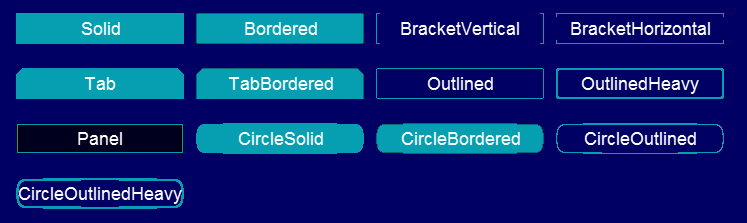
| ButtonVisual | Background | NineSliceRuntime | BackgroundColor |
| ButtonVisual | TextInstance | TextRuntime | ForegroundColor |
| ButtonVisual | FocusedIndicator | NineSliceRuntime | FocusedIndicatorColor |
| ToggleButtonVisual | Background | NineSliceRuntime | BackgroundColor |
| ToggleButtonVisual | TextInstance | TextRuntime | ForegroundColor |
| ToggleButtonVisual | FocusedIndicator | NineSliceRuntime | FocusedIndicatorColor |
| CheckBoxVisual | CheckBoxBackground | NineSliceRuntime | BackgroundColor |
| CheckBoxVisual | InnerCheck (child of CheckBoxBackground) | SpriteRuntime | CheckColor |
| CheckBoxVisual | TextInstance | TextRuntime | ForegroundColor |
| CheckBoxVisual | FocusedIndicator | NineSliceRuntime | FocusedIndicatorColor |
| ComboBoxVisual | Background | NineSliceRuntime | BackgroundColor |
| ComboBoxVisual | TextInstance | TextRuntime | ForegroundColor |
| ComboBoxVisual | ListBoxInstance | ListBoxVisual | — |
| ComboBoxVisual | DropdownIndicator | SpriteRuntime | DropdownIndicatorColor |
| ComboBoxVisual | FocusedIndicator | NineSliceRuntime | FocusedIndicatorColor |
| ItemsControlVisual | Inherits all children from ScrollViewerVisual |
| LabelVisual | Inherits from TextRuntime directly, no children. Color is set via the Color styling property. |
| ListBoxItemVisual | Background | NineSliceRuntime | HighlightedBackgroundColor / SelectedBackgroundColor |
| ListBoxItemVisual | TextInstance | TextRuntime | ForegroundColor |
| ListBoxItemVisual | FocusedIndicator | NineSliceRuntime | FocusedIndicatorColor |
| ListBoxVisual | Background | NineSliceRuntime | BackgroundColor |
| ListBoxVisual | FocusedIndicator | NineSliceRuntime | FocusedIndicatorColor |
| ListBoxVisual | ClipAndScrollContainer | ContainerRuntime | — |
| ListBoxVisual | VerticalScrollBarInstance (child of ClipAndScrollContainer) | ScrollBarVisual | — |
| ListBoxVisual | ClipContainerParent (child of ClipAndScrollContainer) | ContainerRuntime | — |
| ListBoxVisual | ClipContainerInstance (child of ClipContainerParent) | ContainerRuntime | — |
| ListBoxVisual | InnerPanelInstance (child of ClipContainerInstance) | ContainerRuntime | — |
| MenuItemVisual | Background | NineSliceRuntime | HighlightedBackgroundColor / SelectedBackgroundColor |
| MenuItemVisual | ContainerInstance | ContainerRuntime | — |
| MenuItemVisual | TextInstance (child of ContainerInstance) | TextRuntime | ForegroundColor |
| MenuItemVisual | SubmenuIndicatorInstance (child of ContainerInstance) | TextRuntime | SubmenuIndicatorColor |
| MenuVisual | Background | NineSliceRuntime | BackgroundColor |
| MenuVisual | InnerPanelInstance | ContainerRuntime | — |
| PasswordBoxVisual | Inherits all children from TextBoxBaseVisual |
| RadioButtonVisual | RadioBackground | NineSliceRuntime | BackgroundColor |
| RadioButtonVisual | Radio (child of RadioBackground) | SpriteRuntime | RadioColor |
| RadioButtonVisual | TextInstance | TextRuntime | ForegroundColor |
| RadioButtonVisual | FocusedIndicator | NineSliceRuntime | FocusedIndicatorColor |
| ScrollBarVisual | UpButtonInstance | ButtonVisual | — |
| ScrollBarVisual | UpButtonIcon (child of UpButtonInstance) | SpriteRuntime | ScrollArrowColor |
| ScrollBarVisual | DownButtonInstance | ButtonVisual | — |
| ScrollBarVisual | DownButtonIcon (child of DownButtonInstance) | SpriteRuntime | ScrollArrowColor |
| ScrollBarVisual | ThumbContainer | ContainerRuntime | — |
| ScrollBarVisual | TrackInstance (child of ThumbContainer) | NineSliceRuntime | TrackBackgroundColor |
| ScrollBarVisual | ThumbInstance (child of ThumbContainer) | ButtonVisual | — |
| ScrollViewerVisual | Background | NineSliceRuntime | BackgroundColor |
| ScrollViewerVisual | FocusedIndicator | NineSliceRuntime | FocusedIndicatorColor |
| ScrollViewerVisual | ScrollAndClipContainer | ContainerRuntime | — |
| ScrollViewerVisual | VerticalScrollBarInstance (child of ScrollAndClipContainer) | ScrollBarVisual | — |
| ScrollViewerVisual | HorizontalScrollBarInstance (child of ScrollAndClipContainer) | ScrollBarVisual | — |
| ScrollViewerVisual | ClipContainerContainer (child of ScrollAndClipContainer) | ContainerRuntime | — |
| ScrollViewerVisual | ClipContainerInstance (child of ClipContainerContainer) | ContainerRuntime | — |
| ScrollViewerVisual | InnerPanelInstance (child of ClipContainerInstance) | ContainerRuntime | — |
| SliderVisual | TrackInstance | ContainerRuntime | — |
| SliderVisual | TrackBackground (child of TrackInstance) | NineSliceRuntime | TrackBackgroundColor |
| SliderVisual | ThumbInstance (child of TrackInstance) | ButtonVisual | — |
| SliderVisual | FocusedIndicator | NineSliceRuntime | FocusedIndicatorColor |
| SplitterVisual | Background | NineSliceRuntime | BackgroundColor |
| TextBoxVisual | Inherits all children from TextBoxBaseVisual |
| TextBoxBaseVisual | Background | NineSliceRuntime | BackgroundColor |
| TextBoxBaseVisual | ClipContainer | ContainerRuntime | — |
| TextBoxBaseVisual | SelectionInstance (child of ClipContainer) | NineSliceRuntime | SelectionBackgroundColor |
| TextBoxBaseVisual | TextInstance (child of ClipContainer) | TextRuntime | ForegroundColor |
| TextBoxBaseVisual | PlaceholderTextInstance (child of ClipContainer) | TextRuntime | PlaceholderColor |
| TextBoxBaseVisual | CaretInstance (child of ClipContainer) | SpriteRuntime | CaretColor |
| TextBoxBaseVisual | FocusedIndicator | NineSliceRuntime | FocusedIndicatorColor |
| WindowVisual | Background | NineSliceRuntime | BackgroundColor |
| WindowVisual | InnerPanelInstance | Panel | — |
| WindowVisual | TitleBarInstance | Panel | — |
| WindowVisual | BorderTopLeftInstance | Panel | — |
| WindowVisual | BorderTopRightInstance | Panel | — |
| WindowVisual | BorderBottomLeftInstance | Panel | — |
| WindowVisual | BorderBottomRightInstance | Panel | — |
| WindowVisual | BorderTopInstance | Panel | — |
| WindowVisual | BorderBottomInstance | Panel | — |
| WindowVisual | BorderLeftInstance | Panel | — |
| WindowVisual | BorderRightInstance | Panel | — |