> For the complete documentation index, see [llms.txt](https://docs.flatredball.com/gum/llms.txt). Markdown versions of documentation pages are available by appending `.md` to page URLs; this page is available as [Markdown](https://docs.flatredball.com/gum/code/layout/introduction-to-gum-layout.md).
# Introduction to Gum Layout
Gum's layout engine can be used to create layouts to dock, anchor, size, and position objects responsively. This section provides an introduction to the layout engine which is used for all types of controls.
## Layout in Code and Gum Tool
The same layout engine is used in the Gum tool and all Gum runtimes. Therefore, if you are just learning to use Gum, you can learn about how Gum layout works in either environment.
Even if you intend to use Gum in a code-only environment, using the Gum tool while learning the layout engine is recommended since it is easy to experiment and get a feel for the syntax.
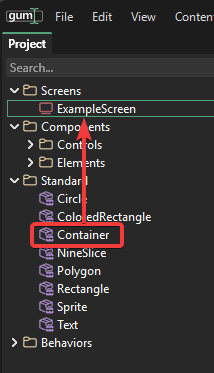
For example, we can create a screen and add a Container instance.
Drag+drop a Container onto a screen to add a container instance
{% hint style="info" %}
A Container is used since it is the simplest type of Gum object, allowing us to focus purely on layout concepts without worrying about considerations.
{% endhint %}
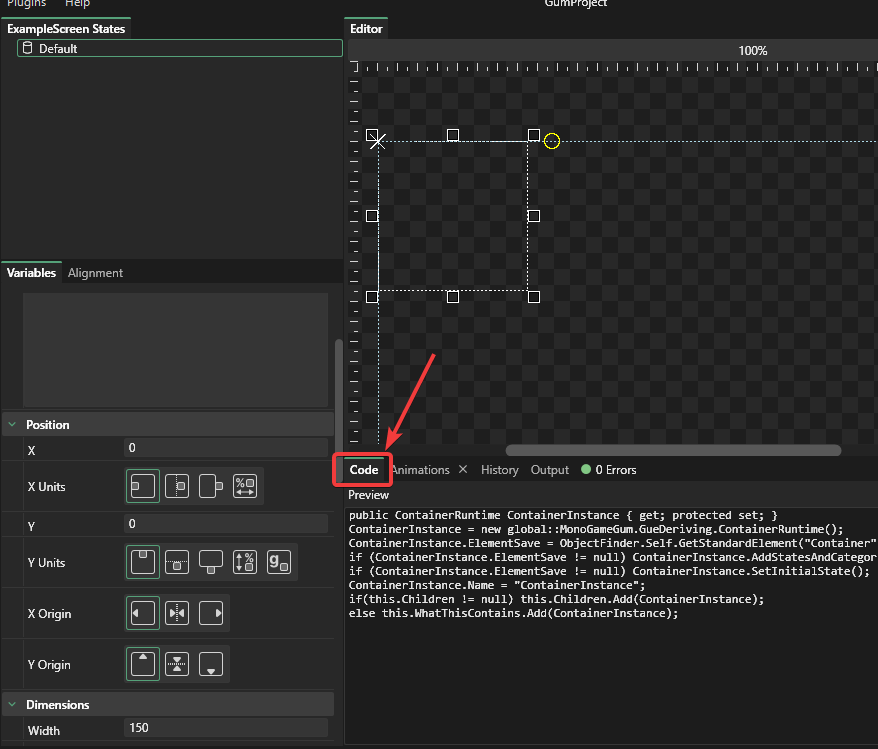
Once this has been added, it can be edited in either the Variables tab or in the Editor window to immediately see how changes apply. To see the relevant code, select the Code tab.
Code tab in Gum
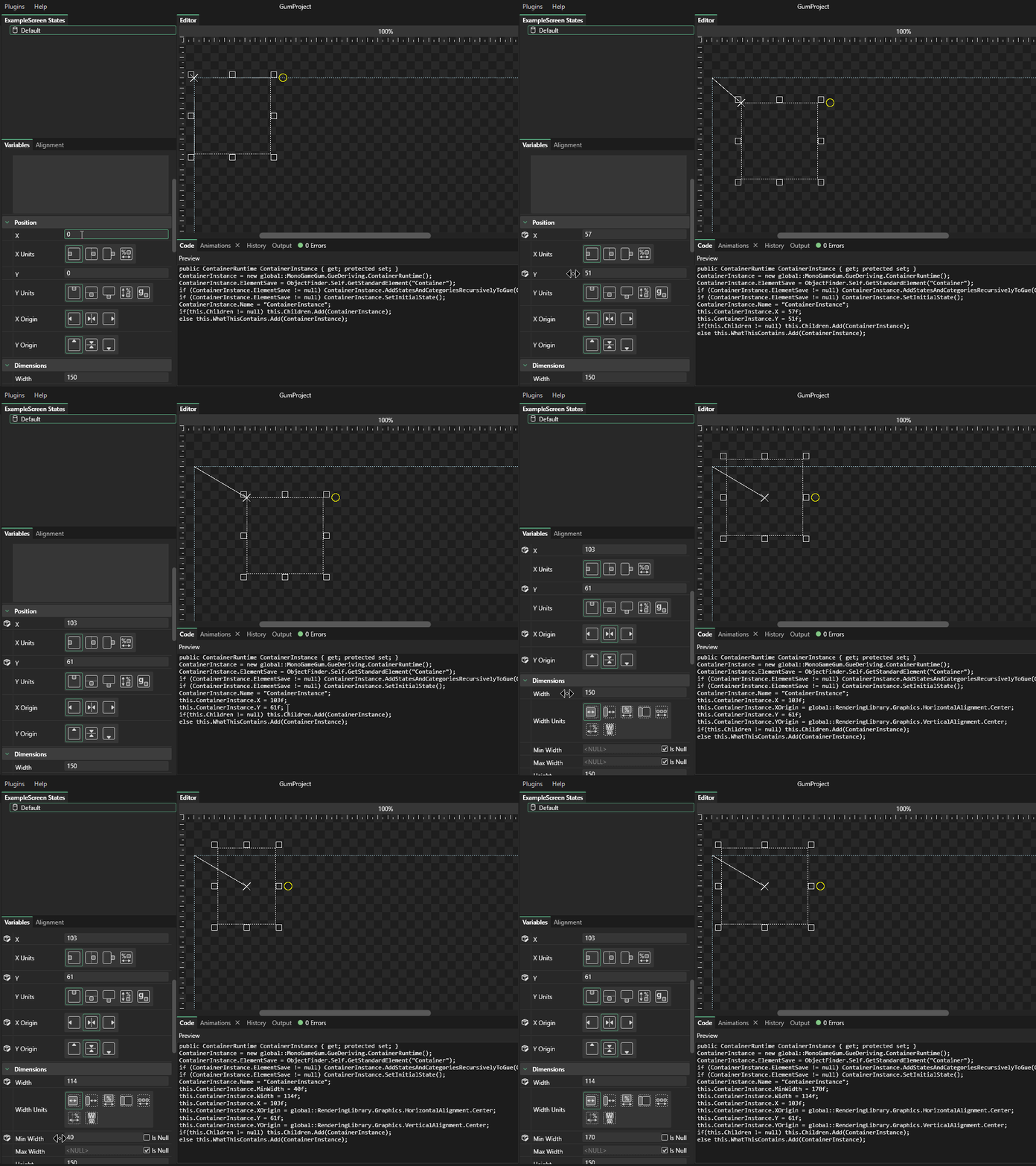
The code tab displays the code necessary to create and perform the layout for the selected object. The code tab updates in real-time a well, so feel free to experiment.
Changes apply in the Code tab immediately as they are made
## Layout Basics in Code
If you are working in a code-only environment, you can set layout properties directly on any Gum runtime object. Every runtime exposes `X`, `Y`, `Width`, and `Height` as numeric values, and four corresponding unit properties — `XUnits`, `YUnits`, `WidthUnits`, and `HeightUnits` — that control how those numbers are interpreted.
### Units overview
`XUnits` and `YUnits` are values of type `Gum.Converters.GeneralUnitType`:
* `PixelsFromSmall` — pixels from the left (for X) or top (for Y) edge of the parent. This is the default.
* `PixelsFromLarge` — pixels from the right (for X) or bottom (for Y) edge of the parent. Useful for pinning to an edge.
* `PixelsFromMiddle` — pixels from the horizontal center (for X) or vertical center (for Y) of the parent.
* `Percentage` — a percentage of the parent's dimension (0–100).
`WidthUnits` and `HeightUnits` are values of type `Gum.DataTypes.DimensionUnitType`:
* `Absolute` — the value is in pixels. This is the default.
* `PercentageOfParent` — the value is a percentage of the parent's dimension, where 100 equals 100 %.
* `RelativeToParent` — the value is added to the parent's dimension, where 0 equals the same size as the parent.
* `RelativeToChildren` — the size expands to fit the children, with the value as additional padding.
### Example: container with a child pinned to its right edge
The following example creates a container that is 50 % of the screen wide and positions a colored rectangle 10 pixels from its right edge:
```csharp
// Initialize
// A container sized to 50% of the screen width and 200px tall
var container = new ContainerRuntime();
container.X = 50;
container.Y = 50;
container.XUnits = Gum.Converters.GeneralUnitType.PixelsFromSmall;
container.YUnits = Gum.Converters.GeneralUnitType.PixelsFromSmall;
container.Width = 50;
container.WidthUnits = Gum.DataTypes.DimensionUnitType.PercentageOfParent;
container.Height = 200;
container.HeightUnits = Gum.DataTypes.DimensionUnitType.Absolute;
container.AddToRoot();
// A child pinned 10px from the right edge of its parent
var child = new ColoredRectangleRuntime();
child.Color = Microsoft.Xna.Framework.Color.CornflowerBlue;
child.X = -10;
child.Y = 10;
child.XUnits = Gum.Converters.GeneralUnitType.PixelsFromLarge;
child.YUnits = Gum.Converters.GeneralUnitType.PixelsFromSmall;
child.Width = 80;
child.WidthUnits = Gum.DataTypes.DimensionUnitType.Absolute;
child.Height = 80;
child.HeightUnits = Gum.DataTypes.DimensionUnitType.Absolute;
child.Parent = container;
```
[Try on XnaFiddle.NET](https://xnafiddle.net/#snippet=H4sIAAAAAAAACq1SXUvrQBB9L_Q_DH1SuMYqXLgoPlTFD1CUWrFCX9ZkkixuZsPsxnoV_7uTrU0T9MGvl5A9M-fsSc557vcABqfuuCoGO-C5wj8B0aS9VkY_ocCDzU0YQWzJK03I4AROwFvIlUnB5wguZkSCuU58DooS2B4Oy0fwypgZPShukfeAcA4Hy_O4Iq8LXFvfnVGzFE1l7e-wA92-h6bX4tIJLu4jUXxA9sguOkaZKlNPJ_9LjC71Ixp3xLa4KsRRV_YXNG7CZ7-zF-C2_KHyqhZz0aF8MjltaaWPHKMwM7xILxXLa0frBHWWe9GRH_vB4LO3jO6cNZXHjsQoSSZ2bK0PIcxokXauTQKlIjRQaqJF4HXWHJxgkiHYFOp7y-D3LejAW4ZsLGMyxtgrygx2sq73orAh2-c6Zuts6qMpqeiIVYFzy_eLuTyZUmPnyPumwoZcl2Rja9ic64a0jl9vx5nibCX_g2YE_rIV_1aWvtSIdlaB3XSgpfj9-AN90TRhNm3YHfR7L_3eK7OSh3sYBAAA)
Setting `child.X = -10` with `XUnits = PixelsFromLarge` places the child 10 pixels inward from the right edge of `container`. When `container` resizes (because it is `PercentageOfParent`), the child automatically stays 10 pixels from the right.
---
# Agent Instructions
This documentation is published with GitBook. GitBook is the documentation platform designed so that both humans and AI agents can read, navigate, and reason over technical content effectively. Learn more at gitbook.com.
## Querying This Documentation
If you need additional information that is not directly available in this page, you can query the documentation dynamically by asking a question.
Perform an HTTP GET request on the current page URL with the `ask` query parameter, and the optional `goal` query parameter:
```
GET https://docs.flatredball.com/gum/code/layout/introduction-to-gum-layout.md?ask=&goal=
```
`ask` is the immediate question: it should be specific, self-contained, and written in natural language.
`goal` is optional and describes the broader end goal you are ultimately trying to accomplish on behalf of the user. GitBook uses it to tailor the answer towards what is most useful for that goal.
The response will contain a direct answer to the question and relevant excerpts and sources from the documentation.
Use this mechanism when the answer is not explicitly present in the current page, you need clarification or additional context, or you want to retrieve related documentation sections.